Training guide · Ward leadership
Ward clerk
The ward clerk keeps steepl's leader directory and roles current, adds ward business to the program, and — with the bishop's grant — clears callings once they are recorded in LCR. He edits the ward site like any site editor and prints the QR poster for the doors.
UAT test account: clerk@steepl.test — password from your UAT coordinator.
On this page
What you can do
- Clear callings and releases once recorded in LCR (with the Callings grant)
- Add sustainings, releases and other ward business to Sunday's bulletin
- Invite leaders by Google e-mail and import a typed-up leaders list
- Print the QR poster for the chapel doors
- Edit the bulletin, calendar and announcements like any ward editor
Before you start
- To sign in, choose Sign in with Google. UAT testers: on Sign in to steepl choose Sign in with email, enter the test account e-mail and the password from your UAT coordinator, then Sign in.
- The Bishopric item appears under Confidential in the admin sidebar once the bishop has granted you a module. The demo clerk has Callings only.
- General Handbook 38.8.32: confidential Church information — membership status, temporal needs, other non-public personal information — is not stored outside Church-provided systems. Keep notes here to a few words, never record worthiness, tithing or welfare details, and record official information in LCR.
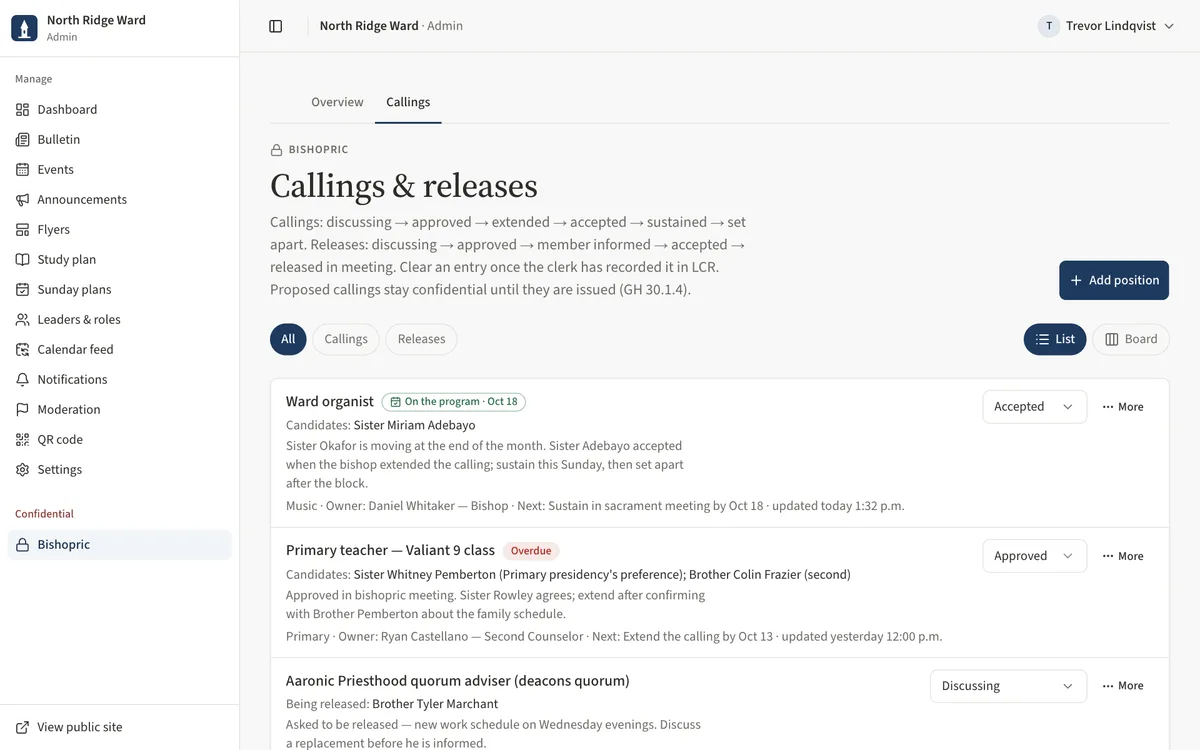
Task 1: Clear callings recorded in LCR
- Open Bishopric, then Callings.
- Entries that are sustained, set apart or declined have Recorded in LCR in the row's More menu.
- Record the calling or release in LCR first, then open More on the row and choose Recorded in LCR.
- The entry moves to Cleared — recorded in LCR at the bottom of the page.
Task 2: Add ward business to the program
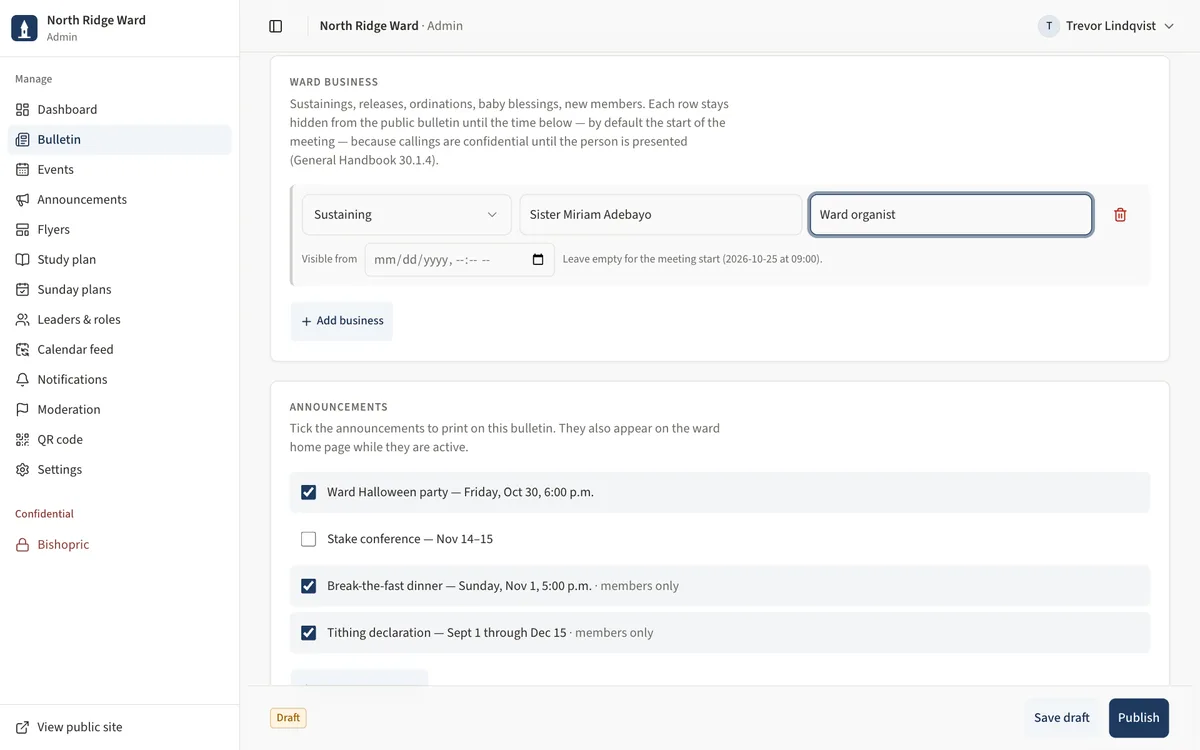
- Open Admin → Bulletin and choose the Sunday's date (or Start for a Sunday with no program yet).
- Under Ward business, choose Add business.
- Pick the kind — Sustaining, Release, Ordination (Aaronic Priesthood), New ward member, Naming and blessing of a child, Confirmation or Other — and type the name and position.
- Leave Visible from empty (it defaults to the meeting start), then Save draft.
- The names appear on the bishopric's conducting sheet. The members' program shows only a bare Ward business line — never the names.
Task 3: Invite a leader by Google e-mail
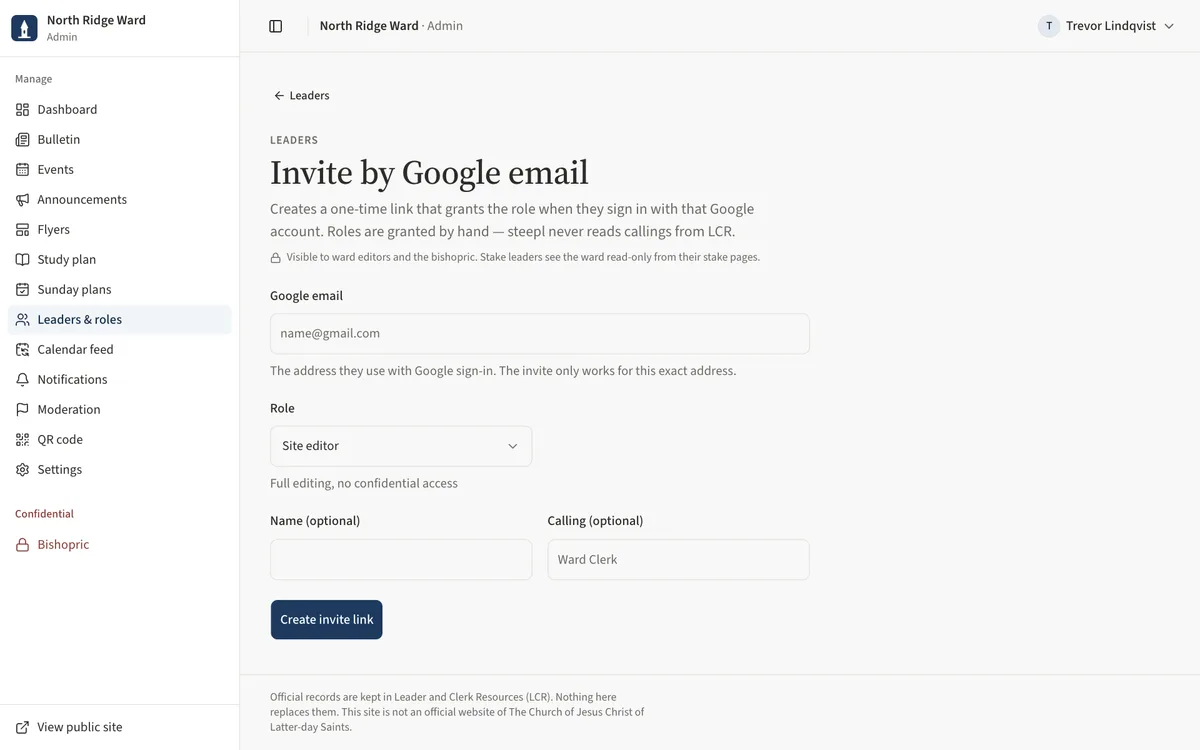
- Open Leaders & roles, open More at the top and choose Invite by email.
- Enter their Google email, the Role (and Organization for an organization leader), and optionally Name and Calling.
- Choose Create invite link, then Copy link and send it. It works once, for that Google e-mail, and expires in 14 days.
- Use Add leader for a directory-only entry (no sign-in), and Record a release on a leader's page when someone is released.
Task 4: Import a leaders list
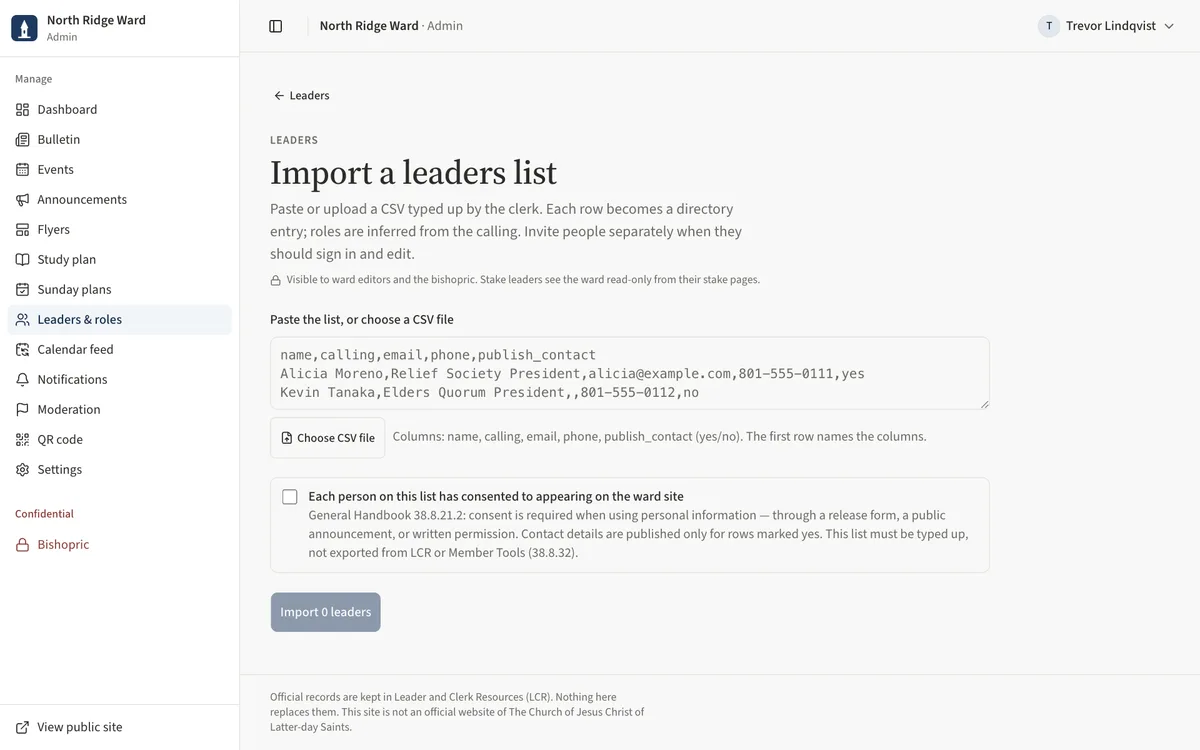
- Open Leaders & roles, open More at the top and choose Import CSV.
- Paste the list or choose Choose CSV file. Columns: name, calling, email, phone, publish_contact (yes/no); the first row names the columns.
- Check Preview — name, calling, detected organization, contact, publish.
- Tick Each person on this list has consented to appearing on the ward site and choose Import (the button shows the number of rows, for example Import 12 leaders).
Task 5: Print the QR poster
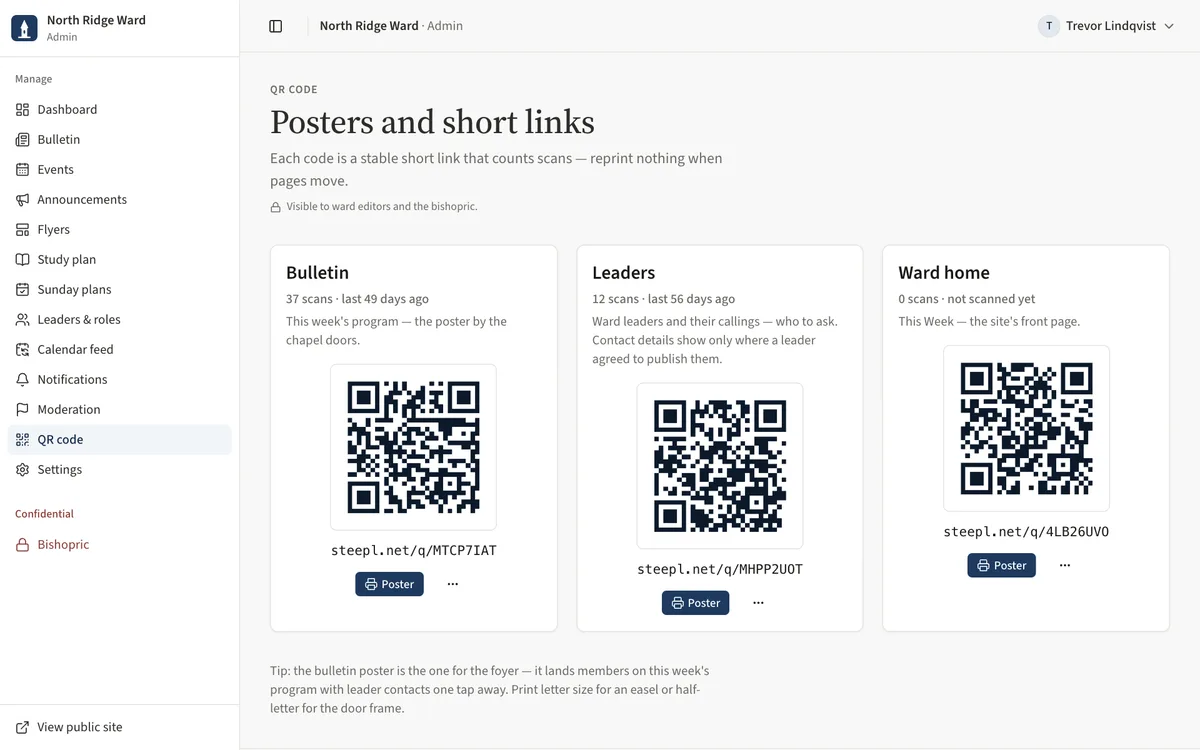
- Open QR code. The Bulletin card shows its scans and short link.
- Choose Poster, then Letter or Half-letter, and Print.
- To put the code in another document, open More on the card and choose Download SVG or Download PNG.
UAT checklist
Tick each flow once you have confirmed it works as described. Note anything unexpected — a wrong label, a missing button, an error — under “What did you see?” and send it to your UAT coordinator.
What did you see?
Account used, date, device, and anything that did not match this guide.