Training guide · Stake
Stake leaders
The stake presidency, stake clerk, executive secretary and communication director keep the stake's events, announcements, conferences and roles current, and see how every ward's site is doing. High councilors see the same pages read-only.
UAT test account: stake-president@steepl.test · stake-clerk@steepl.test · stake-comms@steepl.test · high-councilor@steepl.test (read-only) — password from your UAT coordinator.
On this page
What you can do
- See every ward's program status for next Sunday and its editor coverage on the stake Overview
- Open any ward's details: bulletin, upcoming events and leaders
- Add stake events that appear on every ward's calendar automatically
- Publish stake announcements and schedule stake conferences that flow to every ward
- Invite and release stake leaders, and create or repair a ward's bishop grant
- Keep the stake's settings, and — as stake president — record the stake's approval
Before you start
- In your stake, choose Sign in with Google. A stake editor or platform administrator must first give your Google e-mail a stake role.
- UAT testers: on Sign in to steepl choose Sign in with email and use the stake president test account with the password from your UAT coordinator. The stake clerk and communication director accounts can do the same; the high councilor account is read-only.
- After sign-in you land on My account. Under My roles, your calling shows with a Stake button — that opens the stake pages. From a ward site, the Stake tab or the Account menu item Stake · North Ridge Utah Stake does the same.
- The stake pages have their own menu: Overview · Stake calendar · Conferences · Announcements · Leaders & roles · Settings · Public page.
Task 1: Check every ward at a glance
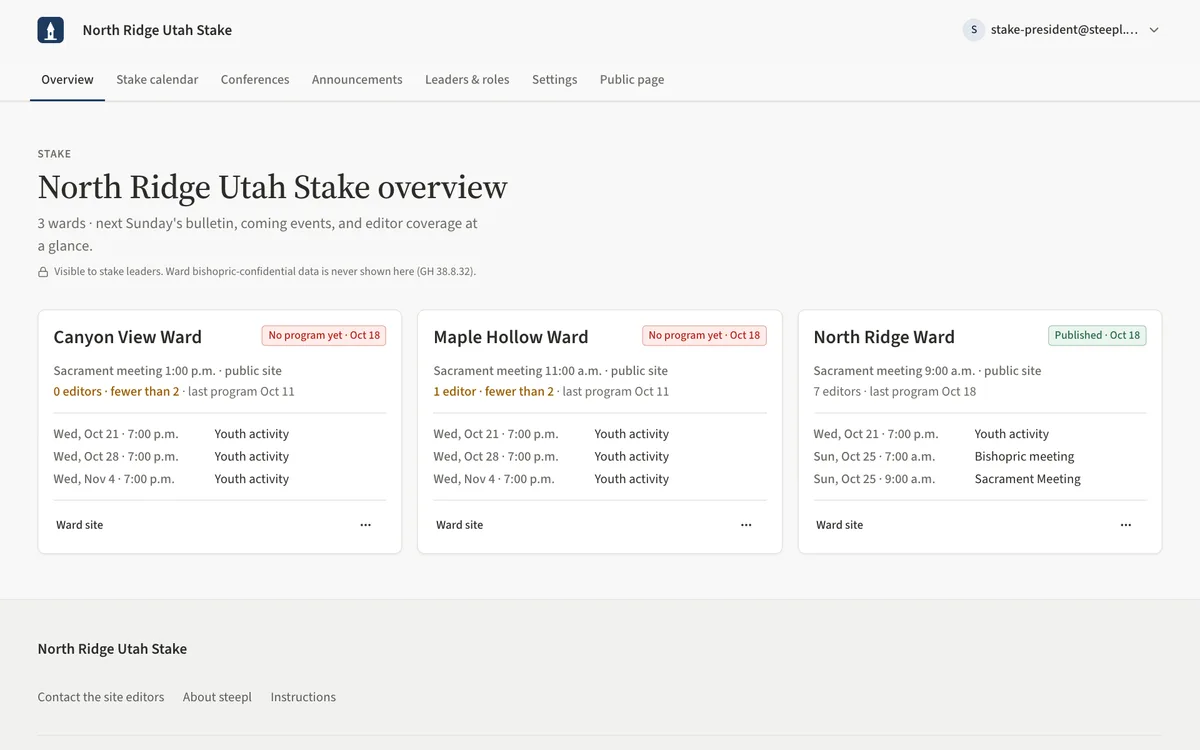
- Open Overview. The page title is the stake name followed by overview.
- Each ward card shows next Sunday's program: Published, Draft or No program yet, with the date.
- Below that, the number of editors (shown in amber with fewer than 2 when a ward needs another editor), the last published program and up to three coming events.
- Choose the ward's name for its read-only summary, or Ward site to open its public pages. The More menu (…) on the card holds Ward details and Bishop grant….
Task 2: Look at one ward's details
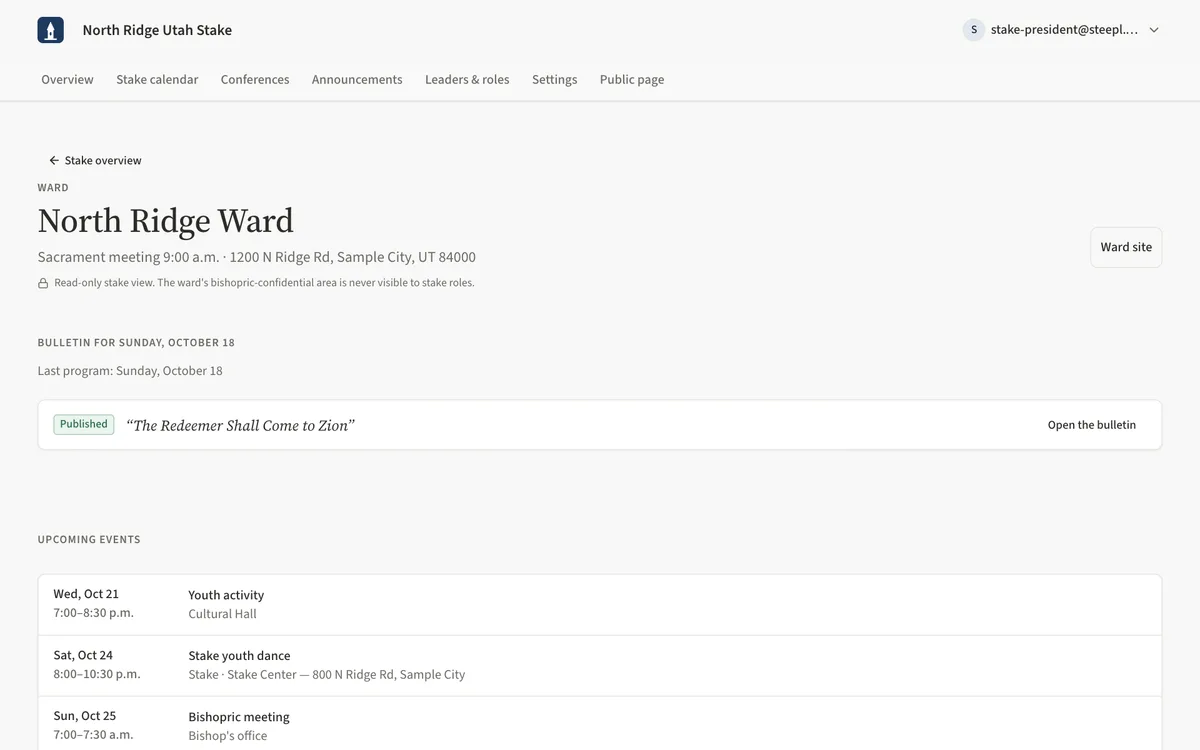
- On Overview, choose the ward's name on its card (or Ward details in the card's More menu).
- Bulletin for next Sunday shows whether it is Published or Draft, with Open the bulletin.
- Upcoming events lists the ward's and the stake's events (stake ones are marked Stake).
- Leaders lists the ward's leaders with phone and e-mail. Use Stake overview to go back.
Task 3: Add a stake event
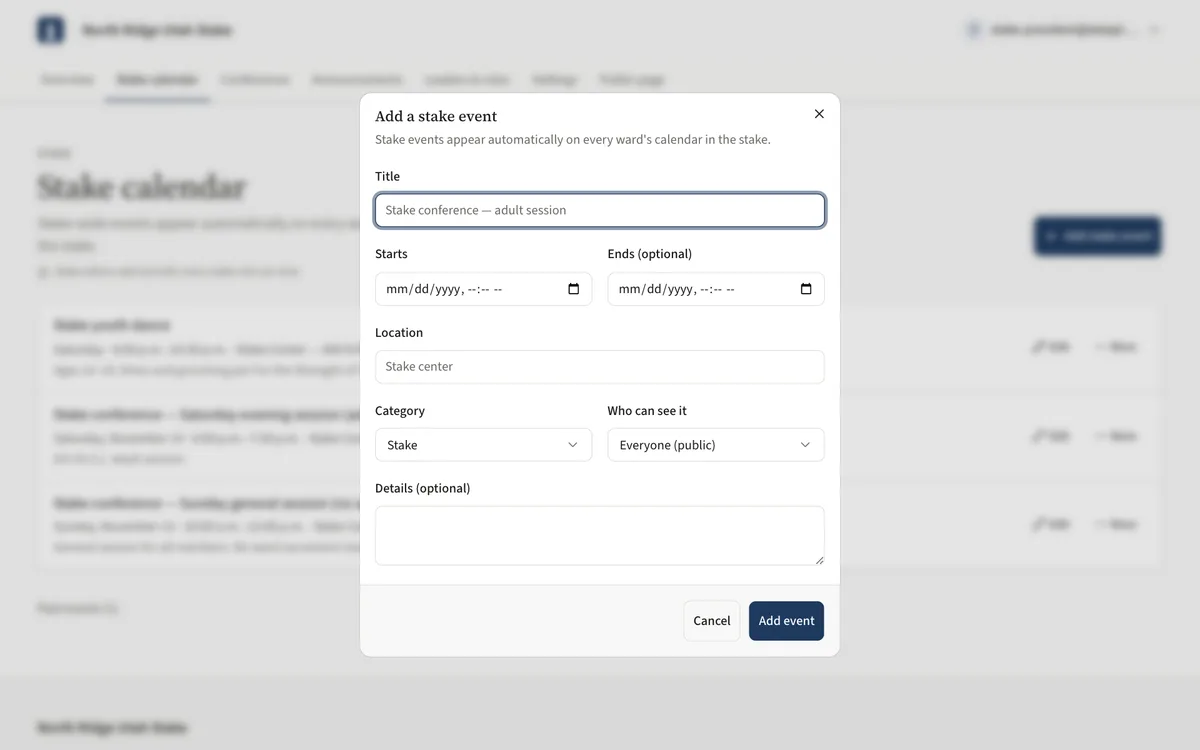
Stake events appear automatically on every ward's calendar in the stake.
- Open Stake calendar and choose Add stake event.
- Enter a Title, Starts (and Ends (optional)), Location and Category.
- Choose Who can see it: Everyone (public), Signed-in members or Leaders only. Add Details (optional).
- Choose Add event. Use Edit to change it later, or open More and choose Remove event to take it off every ward's calendar.
Task 4: Publish a stake announcement
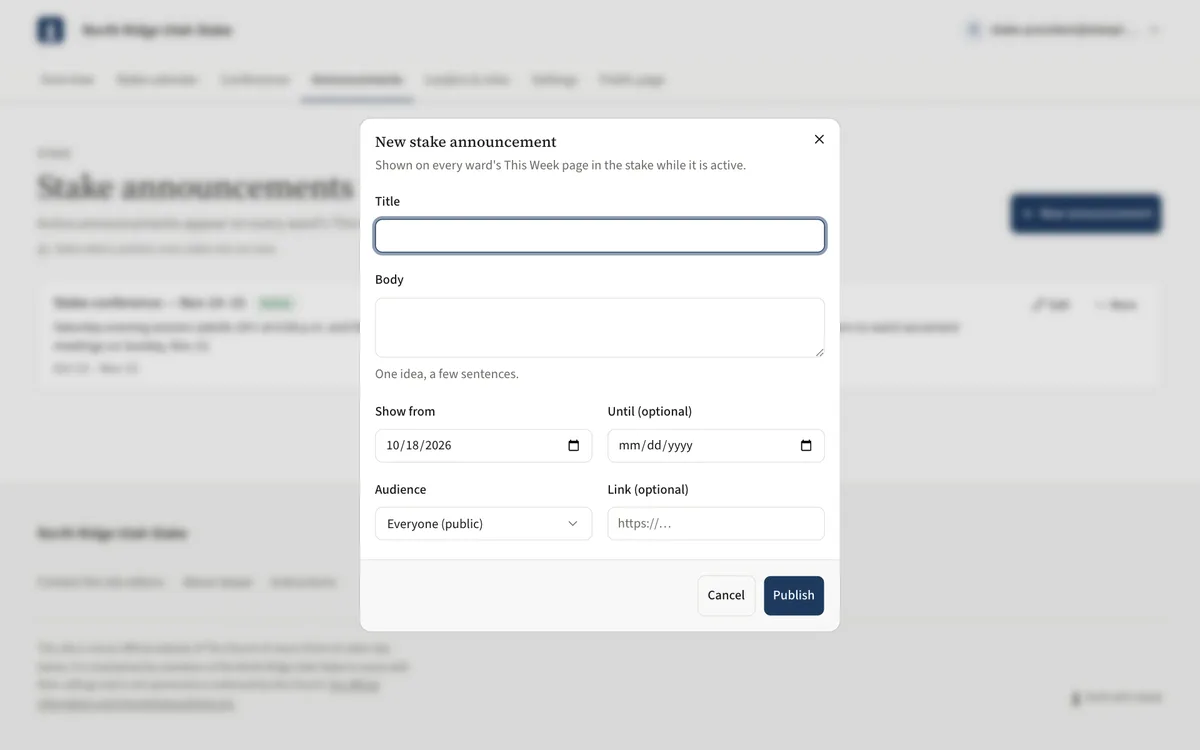
- Open Announcements and choose New announcement.
- Enter a Title and a short Body — one idea, a few sentences.
- Set Show from and, if it should end, Until (optional). Choose the Audience and an optional Link.
- Choose Publish. The list marks each announcement Active, Scheduled or Ended; Edit changes one, and More holds Remove announcement.
Task 5: Schedule a stake conference
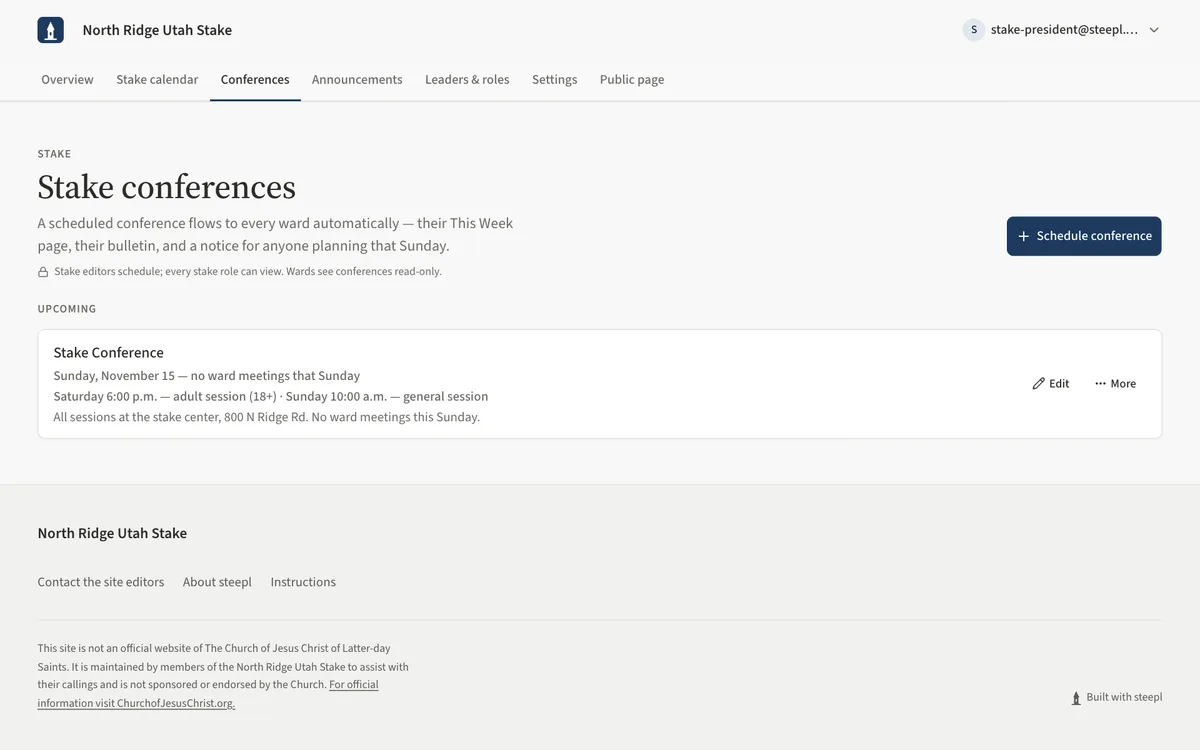
A scheduled conference flows to every ward: This week, the bulletin, and a notice for anyone planning that Sunday.
- Open Conferences and choose Schedule conference.
- Pick the Sunday and keep or change the Title (Stake Conference).
- Under Session times (optional), type one session per line — for example the Saturday adult session and the Sunday general session.
- Add Notes (optional) and choose Schedule. It is listed under Upcoming.
- In each ward, Sunday plans, the bulletin editor and This week now say there are no ward meetings that Sunday.
Task 6: Invite or release a stake leader
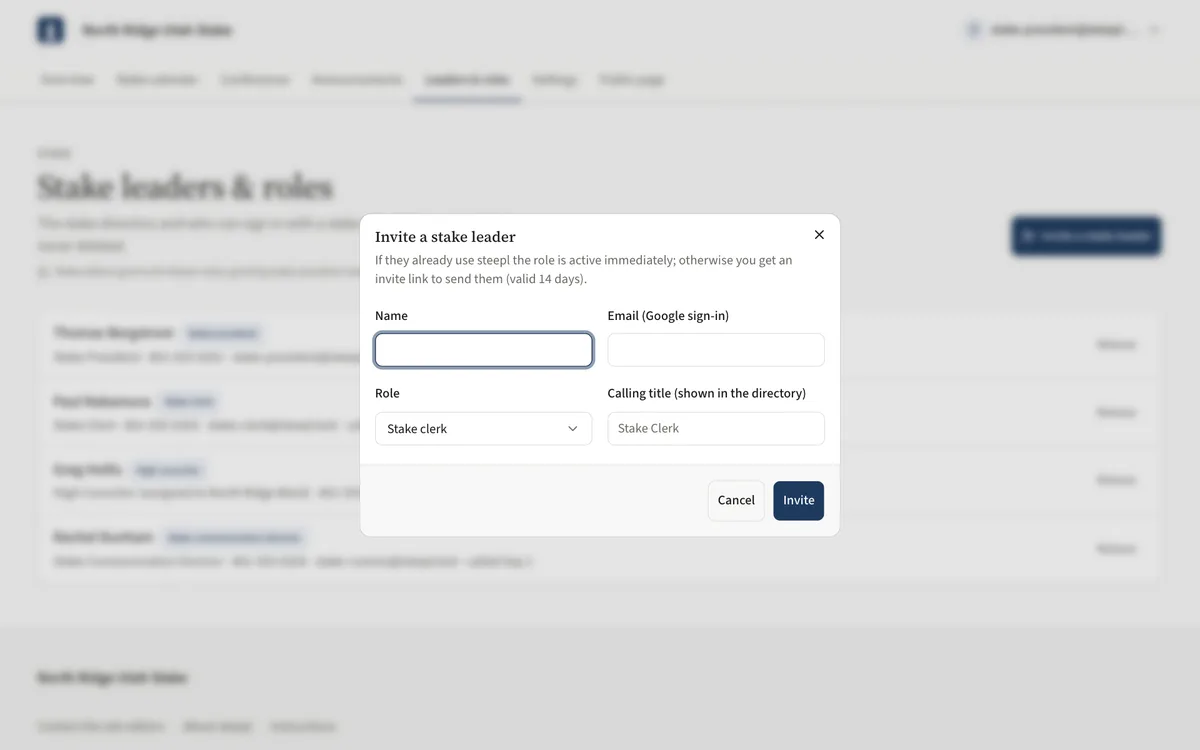
- Open Leaders & roles and choose Invite a stake leader.
- Enter the Name and their Email (Google sign-in), pick the Role, and type the Calling title (shown in the directory).
- Choose Invite. If they already use steepl the role is active now; otherwise copy the invite link (valid 14 days) and send it to them.
- To release someone, choose Release on their row. The dated record is kept — releases are never deleted.
- Invitations not yet accepted appear under Pending invites, where you can Cancel them.
Task 7: Grant a ward's bishop
Callings cannot be pulled from LCR, so a new bishop's access to his ward site is granted by hand.
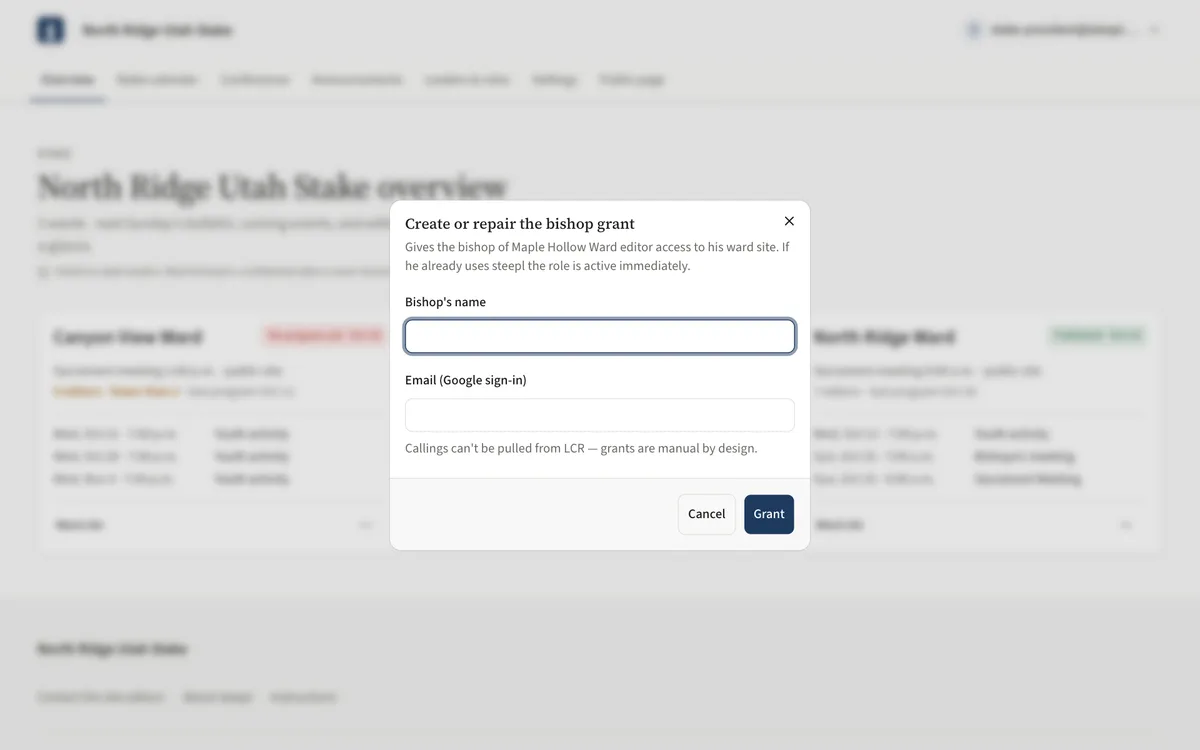
- On Overview, open the More menu (…) on the ward's card and choose Bishop grant….
- In Create or repair the bishop grant, enter the Bishop's name and his Email (Google sign-in).
- Choose Grant. If he already uses steepl his access is active right away; otherwise copy the invite link and send it to him.
- Once he signs in, the bishop can add the rest of the ward's editors himself.
Task 8: Stake settings and approval
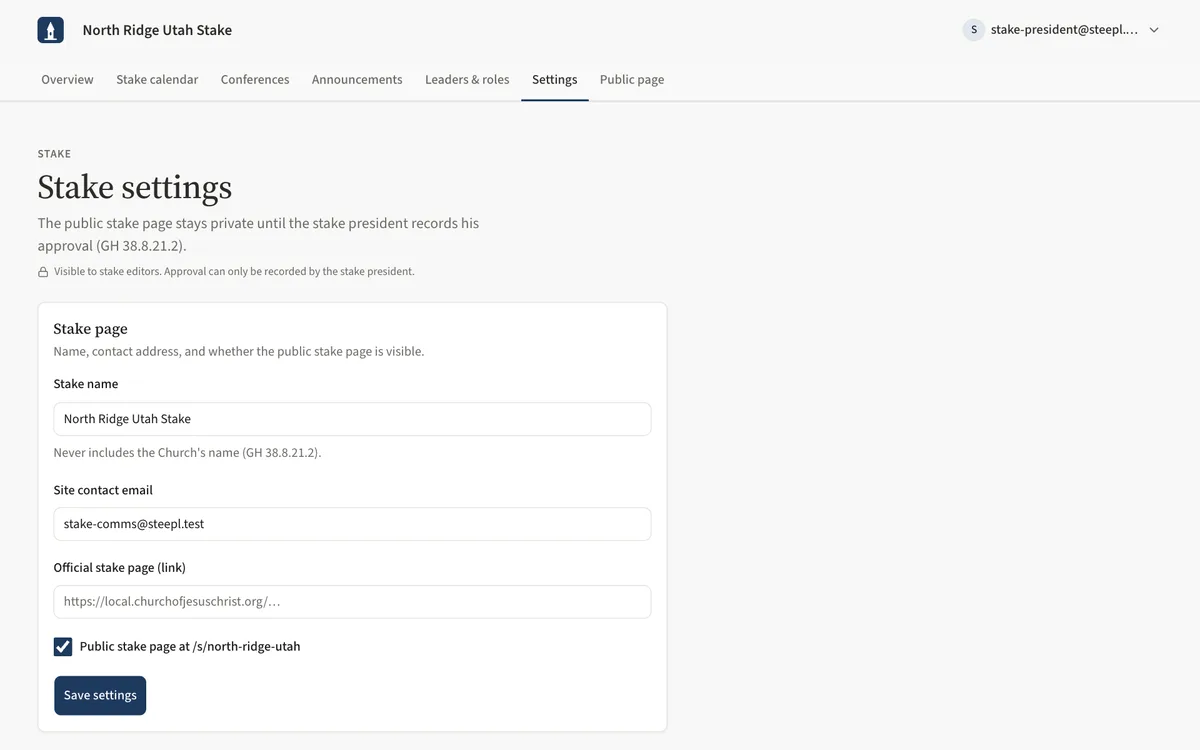
- Open Settings. Under Stake page, check the Stake name, Site contact email and Official stake page (link).
- Tick Public stake page to make the public stake page visible, then Save settings.
- The stake page stays private until the stake president records his approval: under Stake president approval, he ticks the attestation and chooses Record my approval.
UAT checklist
Tick each flow once you have confirmed it works as described. Note anything unexpected — a wrong label, a missing button, an error — under “What did you see?” and send it to your UAT coordinator.
What did you see?
Account used, date, device, and anything that did not match this guide.