Training guide · Ward editors
Site editor
Site editors keep the ward site current week to week: the Sunday bulletin, the calendar, announcements and flyers, reminders and messages, the Church calendar feed, moderation and the ward's settings. It is an assignment, not a calling, and it has no access to the bishopric's confidential workspace.
UAT test account: editor@steepl.test — password from your UAT coordinator.
On this page
What you can do
- Prepare, publish and print each Sunday's bulletin, with the hymn picker and speaker confirmations
- Add ward events, plan the yearly events with an owner, and connect the Church calendar feed
- Approve organization announcements and keep expired ones tidy
- Build flyers from templates and send them to the bishopric for review
- Set reminder rules, send one-off messages, and moderate the study thread
- Keep the ward's settings, the New here? visitor information and the QR codes up to date
Before you start
- To sign in, choose Sign in with Google. UAT testers: on Sign in to steepl choose Sign in with email, enter the test account e-mail and the password from your UAT coordinator, then Sign in.
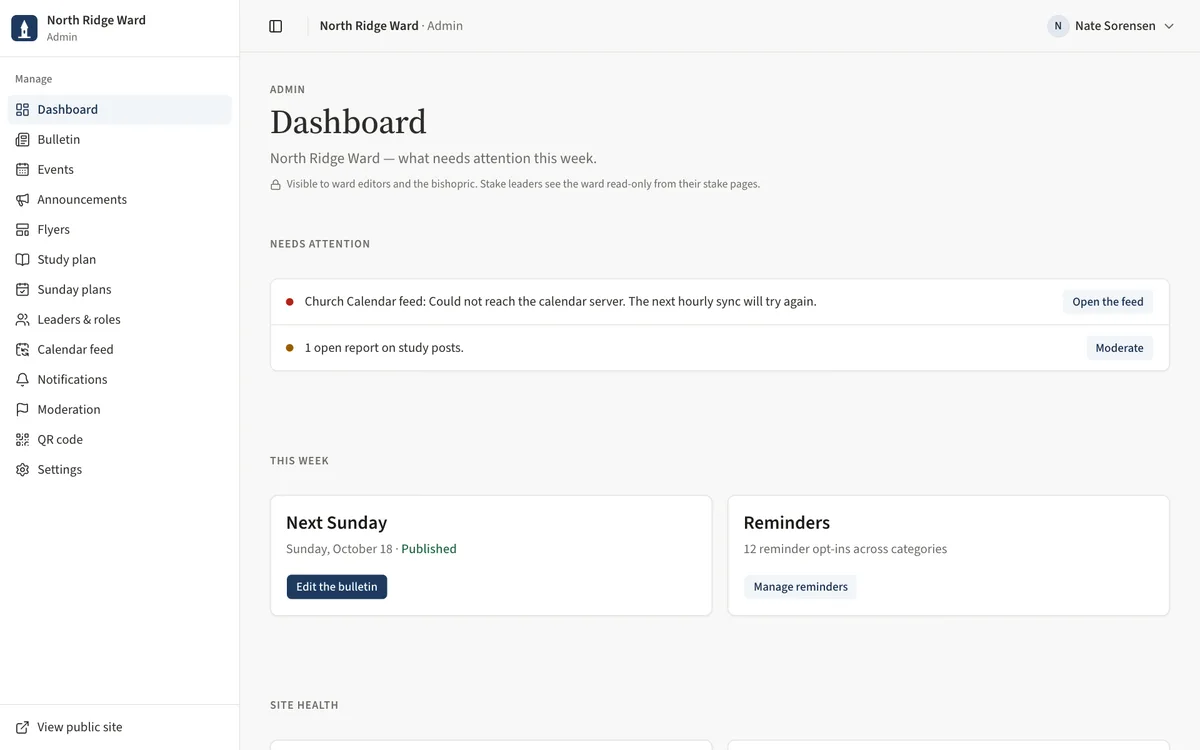
- After sign-in, choose Admin in the ward menu. The sidebar under Manage lists Dashboard · Bulletin · Events · Announcements · Flyers · Study plan · Sunday plans · Leaders & roles · Calendar feed · Notifications · Moderation · QR code · Settings.
- On a phone or a tablet held upright the sidebar is tucked away — open it with the menu button at the top left.
- Each admin page says who can see it. Drafts are never public; nothing is visible to members until you publish.
- Rows keep one main button; the rest — archive, delete, return to draft, downloads — sit in a More menu (the … button) on the row or at the top of the page.
Task 1: Start from the dashboard
- Open Dashboard. Needs attention lists what is waiting — a missing or untouched program, announcements awaiting approval, a feed problem, open reports — each with a button to fix it.
- Under This week, Next Sunday shows the bulletin's status with Edit the bulletin or Start the bulletin, and Reminders shows who is subscribed.
- Site health covers the Church Calendar feed and Site administrators; Next 7 days lists coming events.
Task 2: Fill in Sunday's bulletin
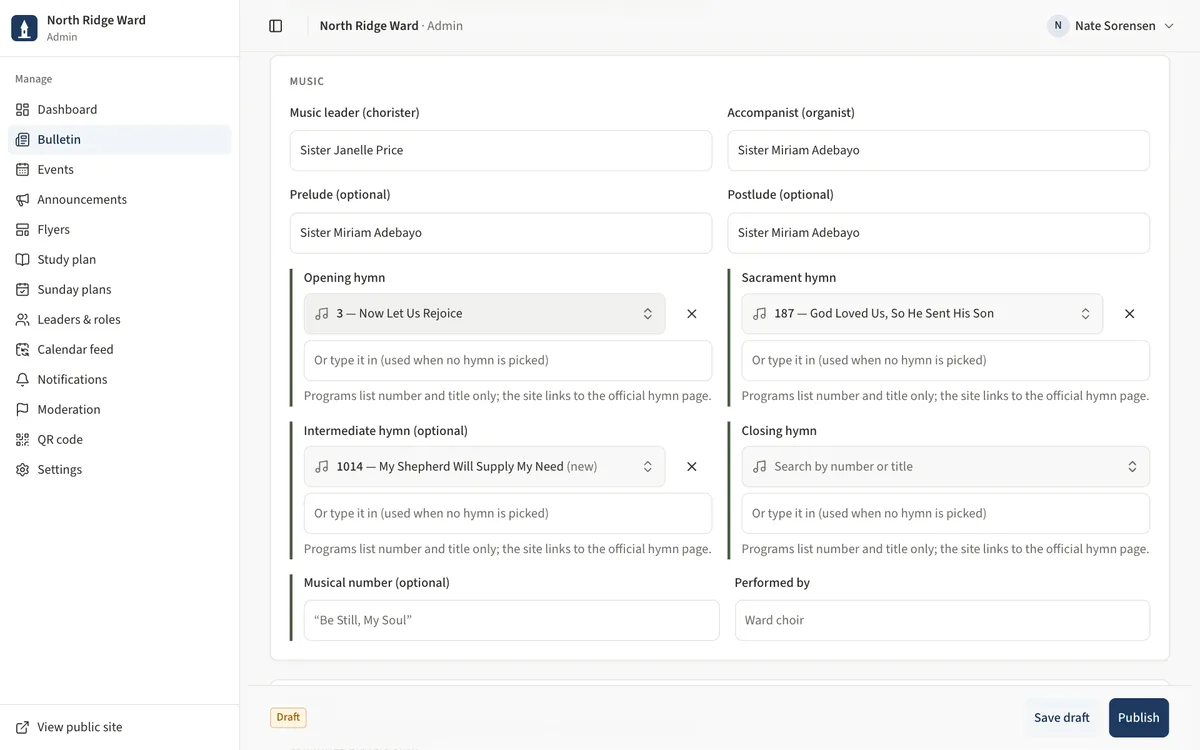
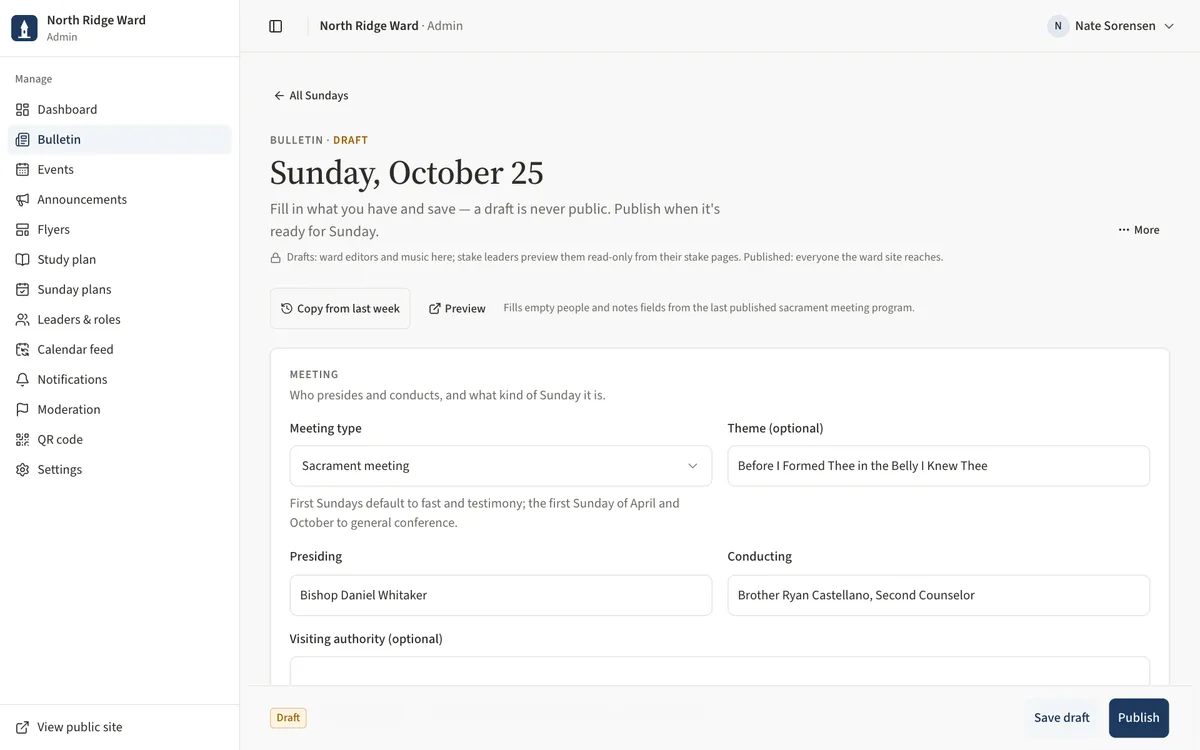
- Open Bulletin and choose the Sunday's date (or Start on a Sunday with no program yet). Copy from last week fills empty people fields from the last published program.
- Under Meeting, set the Meeting type, Presiding and Conducting.
- Under Music, open each hymn and search by number or title (for example “30” or “come come”) — the picker lists all 423 hymns.
- Under Prayers, tick Confirmed once each person has said yes. Under Speakers, choose Add speaker; each starts as Invited — tap it to change it to Confirmed.
- Tick the Announcements to print, check Second hour and Notes, then Save draft.
Task 3: Publish, unpublish and print
- Choose Publish in the bar at the bottom. If someone is not confirmed yet, Publish anyway? asks first — choose Not yet or Publish anyway.
- To change a published program, edit it and choose Save and republish; Unpublish returns it to draft.
- A draft started by mistake can be removed from the More menu at the top of the page: Delete draft.
- To print, open the public bulletin with Preview and choose Print — it prints as a half-letter program with the QR code.
Task 4: Add events and plan the yearly ones
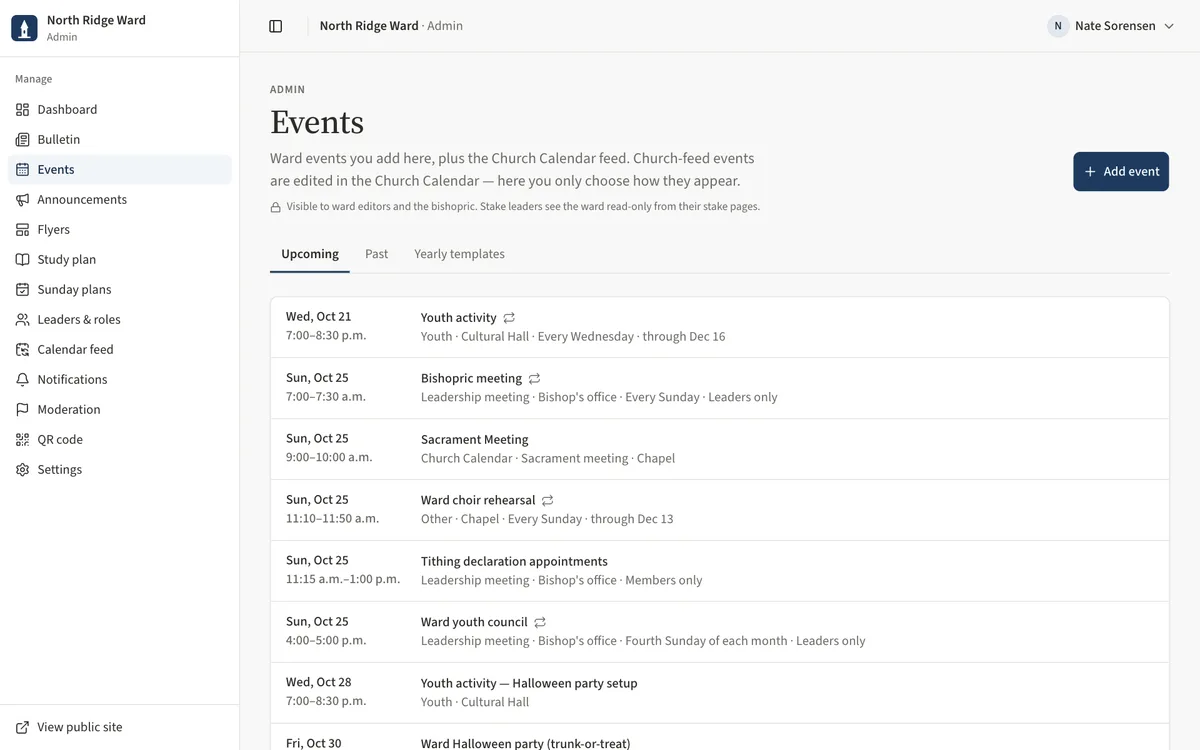
- Open Events and choose Add event. Enter the Title, Starts, Category and Who can see it; add an Owner (optional) and Repeats if it recurs, then Add event.
- Events from the Church calendar show their source; open one to change only its Category, visibility or Hidden from the site.
- Open Yearly templates for the events every ward holds. Choose Plan with the year (for example Plan 2027), set the Date and an Owner, and Plan this year's event.
- The plan's Checklist shows what is due and what is overdue; tick items as they are done and choose Mark done for the year when the event is over.
Task 5: Approve and tidy announcements
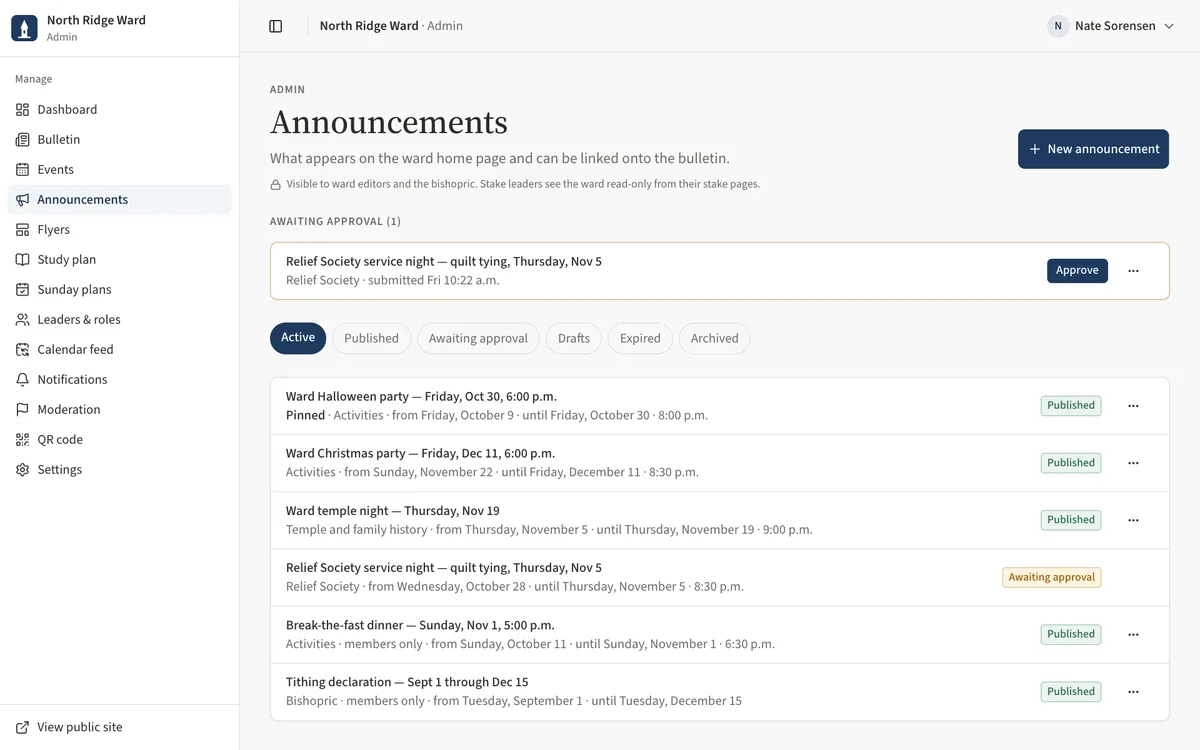
- Open Announcements. Organization leaders' submissions appear under Awaiting approval.
- Read each one and choose Approve, or open More and choose Return to draft if it needs changes.
- To write one yourself, choose New announcement, fill in Title, Show from / Until (optional) and Audience, and Publish announcement. Pin to the top keeps it first on This week.
- Use the Expired filter for announcements past their end date, and open More to Archive what is no longer needed.
- Stake-wide announcements are published by the stake and appear on This week and the bulletin next to the ward's. The bulletin editor lists them under Announcements too, so you can tick the ones to print.
Task 6: Make a flyer
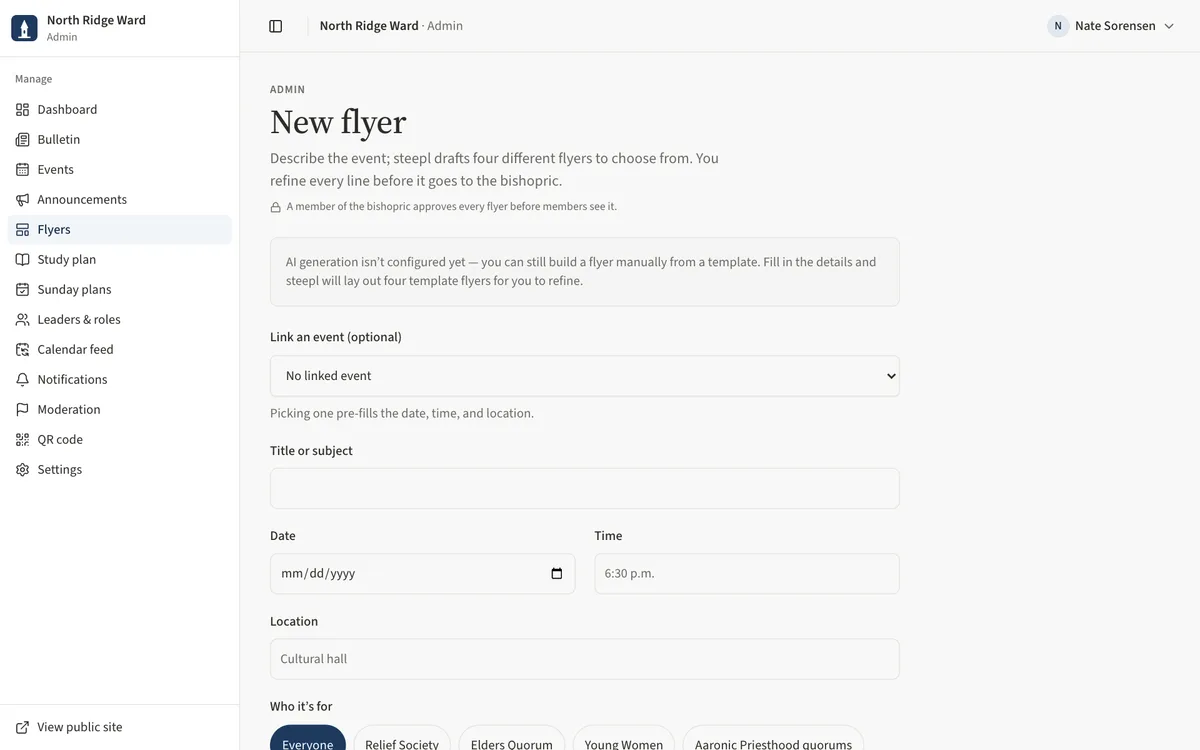
- Open Flyers and choose New flyer.
- Optionally Link an event, then fill in Title or subject, Date, Time, Location, Who it’s for, Details and Vibe.
- Choose Generate 4 flyers (or Build 4 template flyers when AI drafting is not set up), then Use this one on your favourite.
- Refine the text, Template and Palette, then Submit for review. A member of the bishopric approves each flyer before members see it.
Task 7: Study plan and Sunday plans
- Open Study plan to set the general conference talk Elders Quorum and Relief Society study each Sunday: choose Choose talk, search by title or speaker, and choose Save for that Sunday.
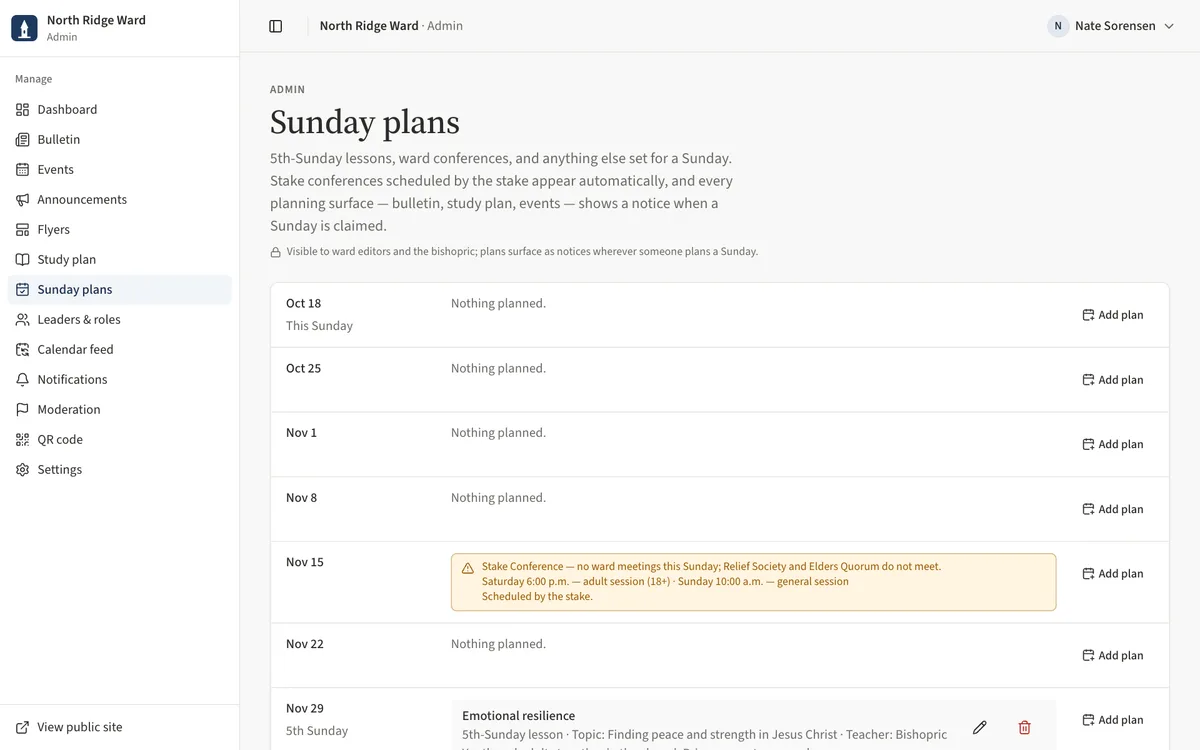
- Open Sunday plans for 5th-Sunday lessons, ward conferences and other plans: Add plan on the Sunday, pick the Kind, add a Title, and Save plan.
- Stake conferences scheduled by the stake appear on their own, and every planning page shows a notice for a claimed Sunday.
Task 8: Connect the Church calendar feed
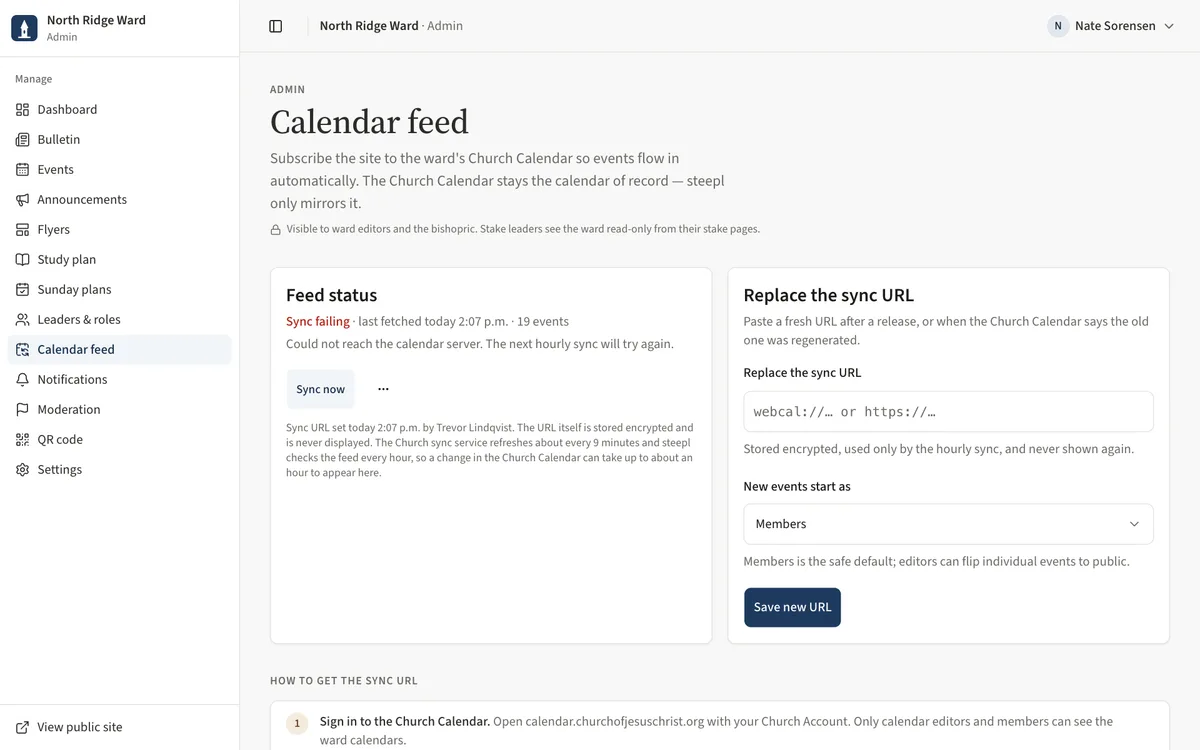
- Open Calendar feed and follow How to get the sync URL — sign in to the Church Calendar, choose the calendars, generate the sync URL.
- Paste it under Church Calendar sync URL, choose New events start as, and Connect the feed. Once a feed is connected, the same card reads Replace the sync URL, with Save new URL.
- Feed status shows the health, when it last fetched and how many events; Sync now checks straight away.
- Under Filters, add a rule such as Hide events whose title contains “Gym” and Add filter.
Task 9: Reminder rules and messages
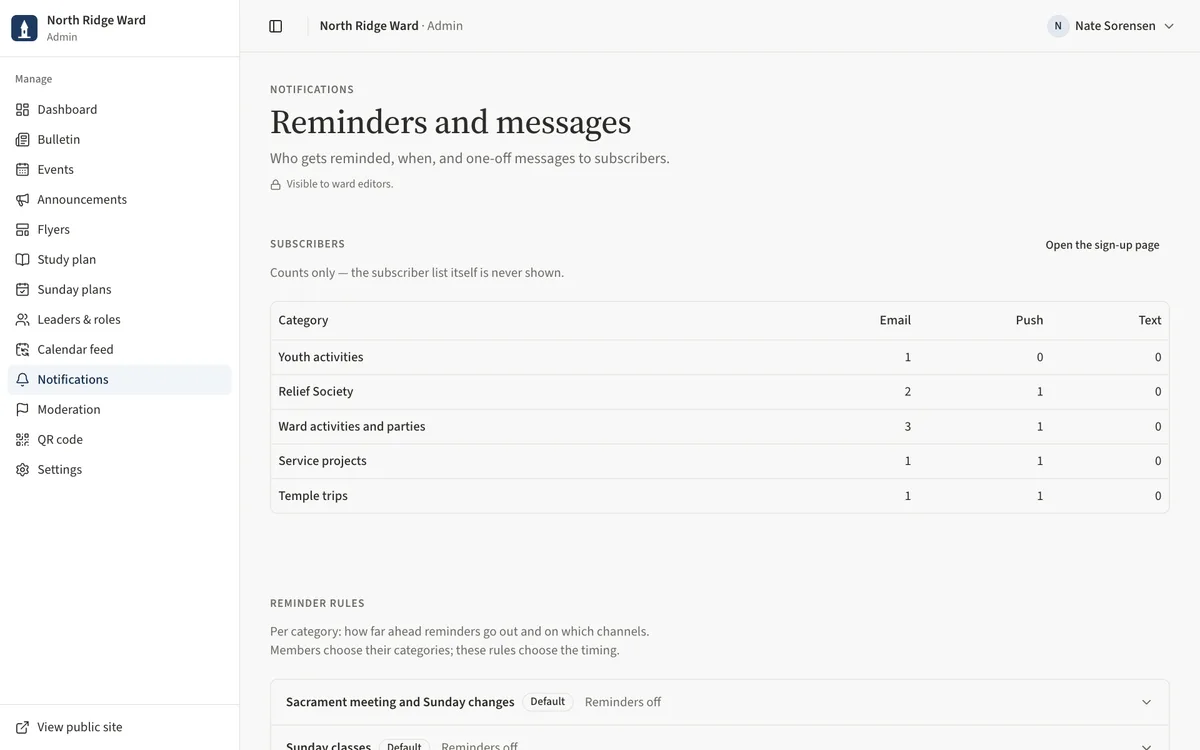
- Open Notifications. Subscribers shows counts only — never the list.
- Under Reminder rules, open a category, choose When and Channels, and Save rule.
- Under Send a message, write a Subject and Message, pick the audience, then Preview and Send now.
- Messages drafted by organization leaders wait under the message list — choose Approve & send or Cancel. The Delivery log shows what went out.
Task 10: Moderation, QR codes and settings
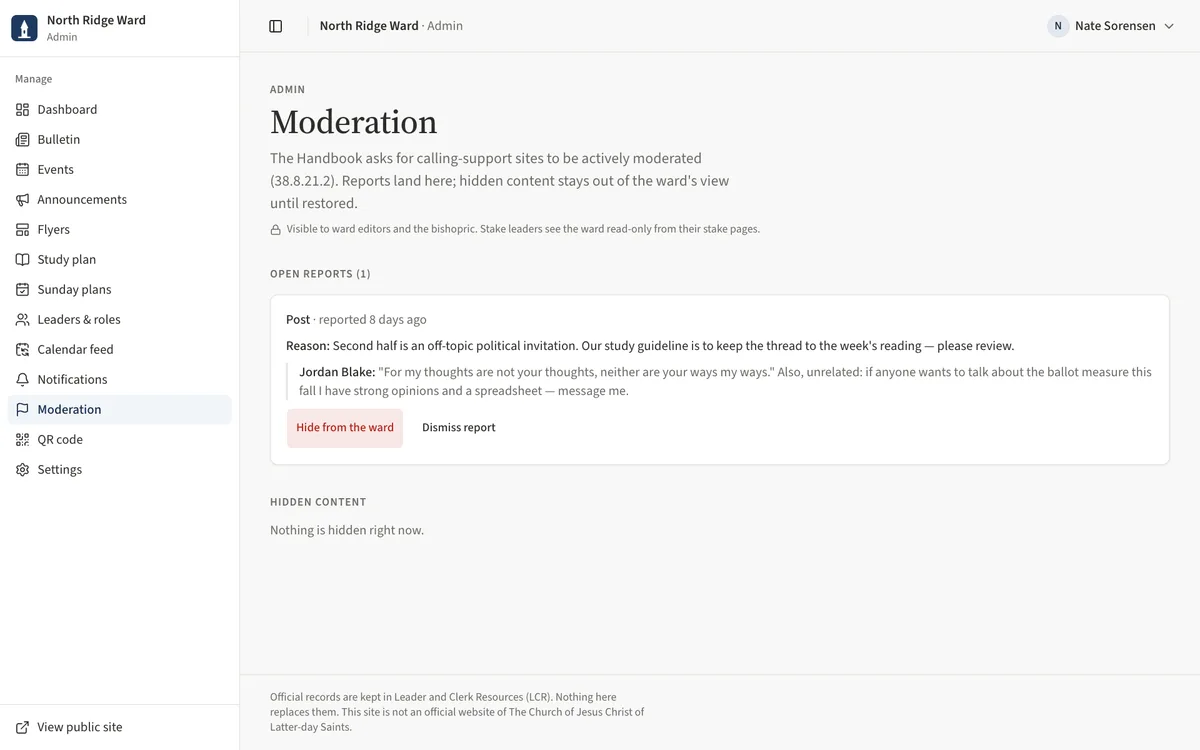
- Open Moderation. For each report under Open reports, choose Hide from the ward or Dismiss report; hidden posts can be restored later.
- Open QR code and choose Poster to print the door poster.
- Open Settings to keep the meeting time, address and contact current, and fill in New here? (for visitors) — what to expect, children and nursery, parking, who to contact. Then Save settings.
- Leaders & roles is read-only for site editors — ask the clerk or bishopric to add or change leaders.
UAT checklist
Tick each flow once you have confirmed it works as described. Note anything unexpected — a wrong label, a missing button, an error — under “What did you see?” and send it to your UAT coordinator.
What did you see?
Account used, date, device, and anything that did not match this guide.