Training guide · Ward editors
Organization leader
Elders Quorum, Relief Society, Young Women and Primary presidents (and any organization leader the ward adds) share news for their own organization: announcements, events and flyers. Elders Quorum and Relief Society presidents also choose the general conference talk for each Sunday.
UAT test account: rs-president@steepl.test · eq-president@steepl.test · yw-president@steepl.test · primary-president@steepl.test — password from your UAT coordinator.
On this page
What you can do
- Write announcements for your organization (an editor approves them)
- Add events for your organization to the ward calendar
- Make a flyer for an activity and send it to the bishopric for review
- Elders Quorum and Relief Society: choose the Sunday talk in Study plan
- Draft a message to your organization's subscribers for an editor to send
Before you start
- To sign in, choose Sign in with Google. UAT testers: on Sign in to steepl choose Sign in with email, enter the test account e-mail and the password from your UAT coordinator, then Sign in.
- Choose Admin in the ward menu. Your sidebar shows Dashboard, Events, Announcements, Flyers, Sunday plans — and Study plan for Elders Quorum and Relief Society.
- On a phone or a tablet held upright the sidebar is tucked away — open it with the menu button at the top left.
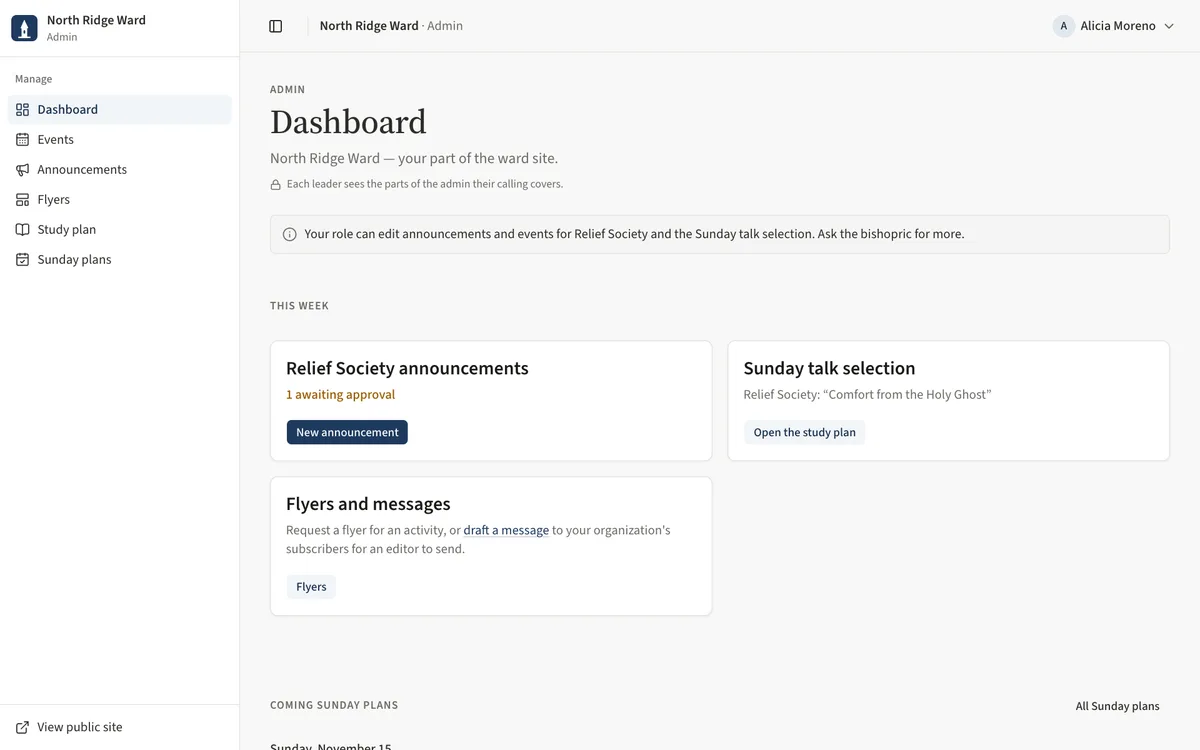
- The dashboard note says what your role covers, for example Your role can edit announcements and events for Relief Society and the Sunday talk selection. Ask the bishopric for more.
Task 1: Your part of the ward site
- Open Dashboard. It is titled with your ward and your part of the ward site.
- The announcements card counts yours as published, awaiting approval or draft.
- Sunday talk selection (Elders Quorum and Relief Society) shows this Sunday's talk or not chosen yet.
- Flyers and messages leads to Flyers and to draft a message.
Task 2: Submit an announcement
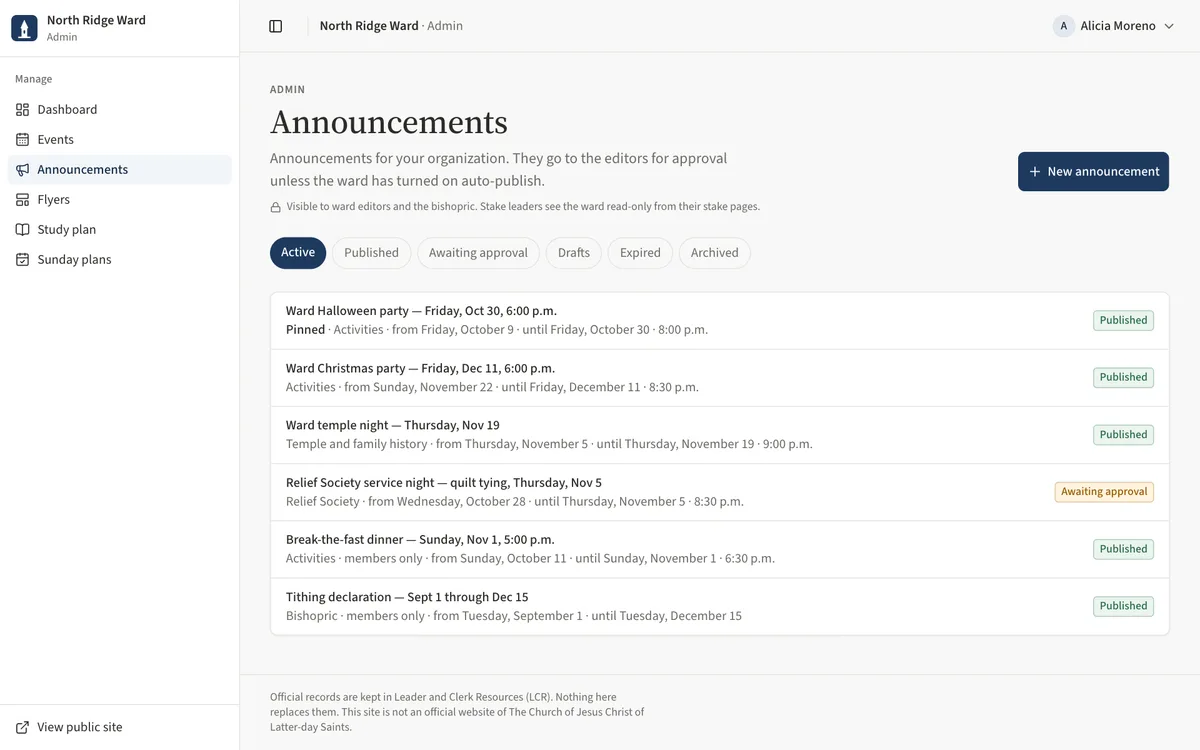
- Open Announcements and choose New announcement.
- Enter the Title and Details (optional), the Show from and Until (optional) dates, the Audience and your Organization.
- Choose Send for approval. A ward editor approves it before it appears; until then it shows Awaiting approval.
- If it comes back as a draft, edit it and send it again.
Task 3: Add an event for your organization
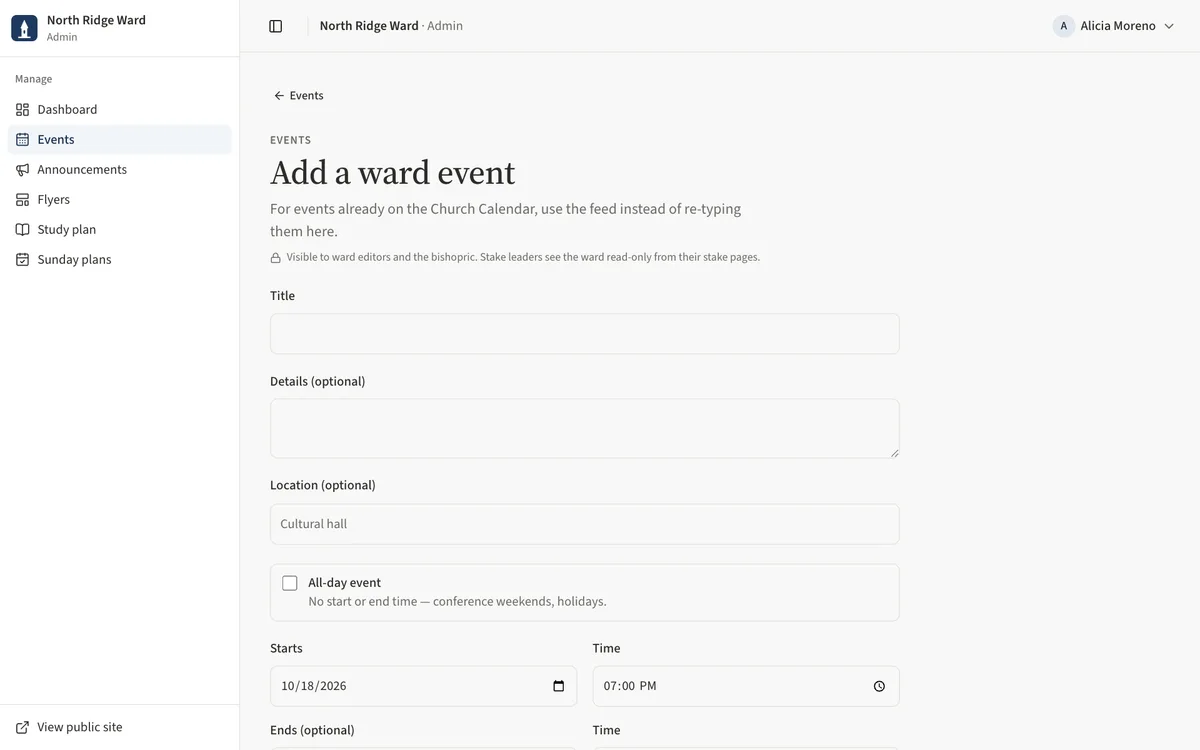
- Open Events and choose Add event.
- Enter the Title, Starts and Time, Location (optional) and Category.
- Pick your Organization and Who can see it, then Add event. It goes on the ward calendar straight away.
Task 4: Request a flyer
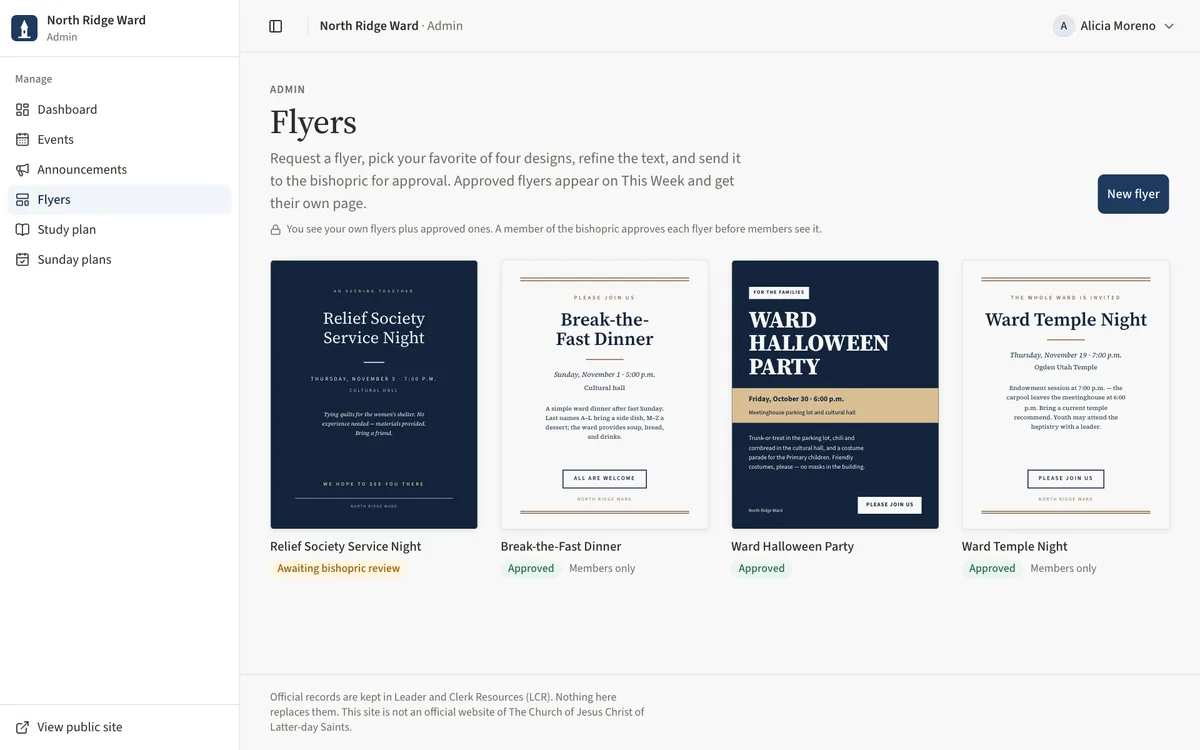
- Open Flyers and choose New flyer.
- Fill in the details (or Link an event), choose Who it’s for and a Vibe, and build the four options.
- Choose Use this one, refine the text, and Submit for review.
- The bishopric approves it, or returns it with a note you can act on.
Task 5: Choose the Sunday talk (Elders Quorum and Relief Society)
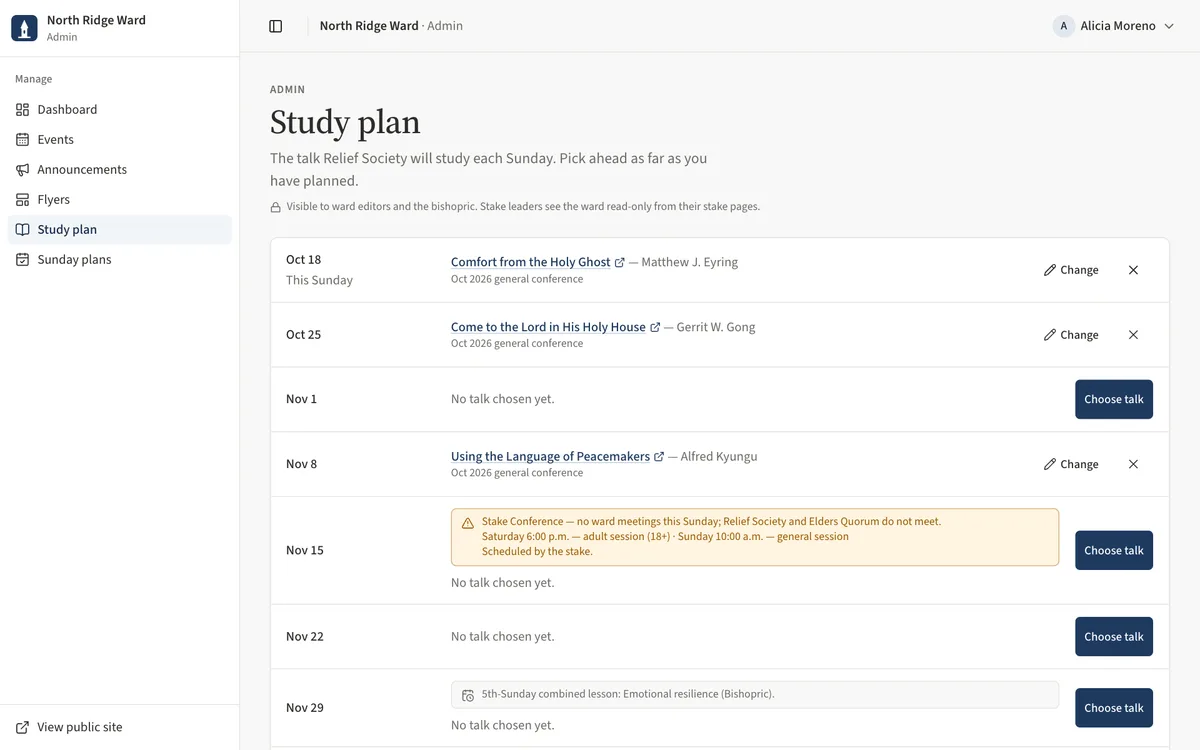
- Open Study plan. The next 12 Sundays are listed; This Sunday is marked.
- Choose Choose talk on a Sunday. Search Conference talks by title or speaker, or paste a Gospel Library link under Other — paste a link.
- Choose Save for that Sunday. The talk shows on the ward's Study and This week pages.
- Use Change to swap it later.
Task 6: Draft a message to your organization
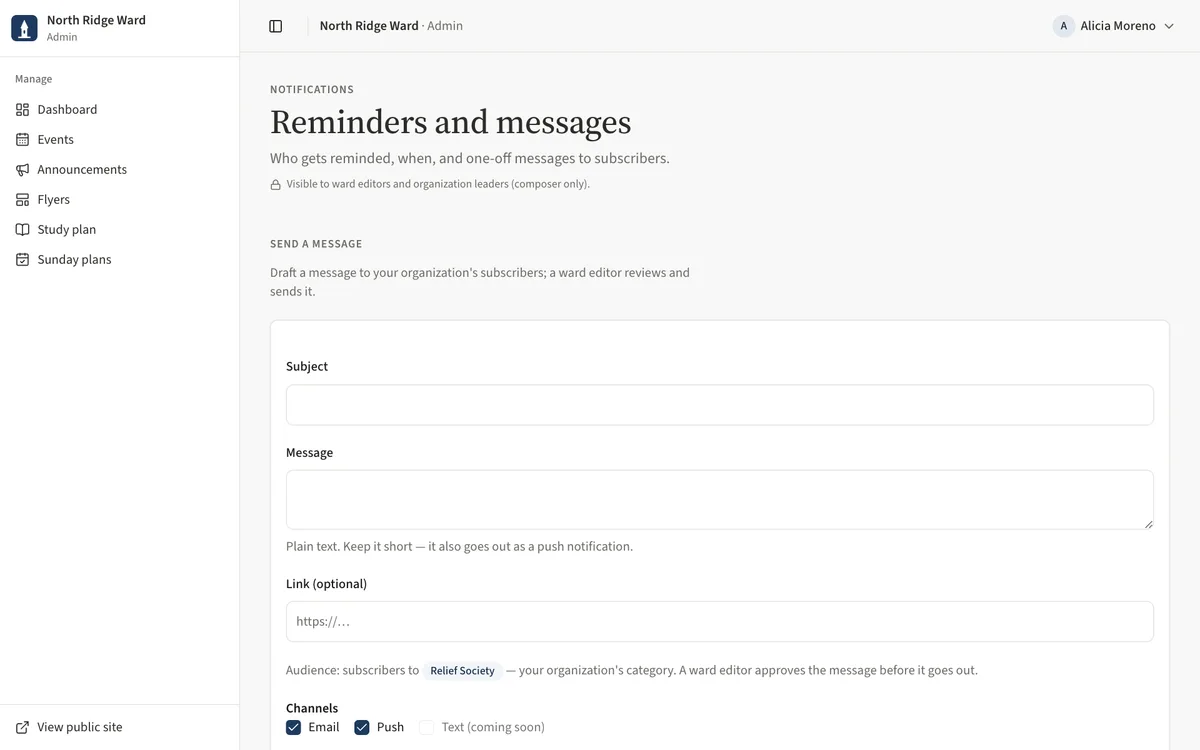
- On Dashboard, choose draft a message in the Flyers and messages card.
- Write the Subject and Message (keep it short — it also goes as a push notification) and an optional Link.
- Choose Submit for approval. A ward editor reviews and sends it to your organization's subscribers.
Task 7: What your role does not cover
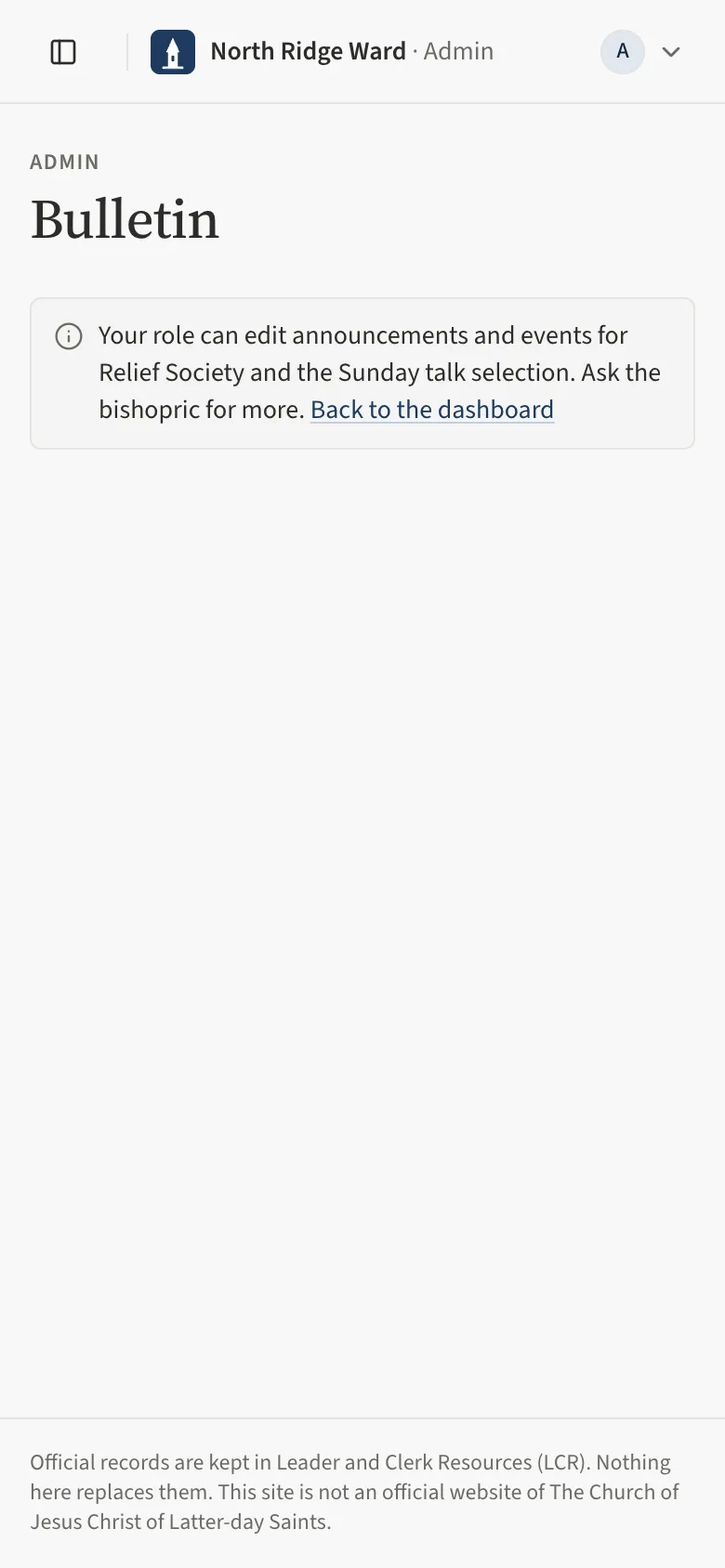
- Pages outside your role show a short note instead — for example the bulletin says what your role can edit and Ask the bishopric for more.
- The bulletin, leaders directory and settings are kept by the ward editors and clerk; ask them for changes.
- Bishopric matters (callings, interviews) stay with the bishopric.
UAT checklist
Tick each flow once you have confirmed it works as described. Note anything unexpected — a wrong label, a missing button, an error — under “What did you see?” and send it to your UAT coordinator.
What did you see?
Account used, date, device, and anything that did not match this guide.