Training guide · Ward editors
Music coordinator
The ward music coordinator fills in the music for each Sunday's program — hymns, prelude and postlude, the musical number, the music leader and accompanist — straight into the bulletin. Everything else on the bulletin is kept by the ward's editors.
UAT test account: music@steepl.test — password from your UAT coordinator.
On this page
What you can do
- Edit the Music section of each Sunday's bulletin, and nothing else on it
- Pick hymns by number or title from all 423 hymns (Hymns and Hymns—For Home and Church)
- Check how each hymn opens for members in the hymn viewer
- Print the QR poster for the chapel doors
Before you start
- To sign in, choose Sign in with Google. UAT testers: on Sign in to steepl choose Sign in with email, enter the test account e-mail and the password from your UAT coordinator, then Sign in.
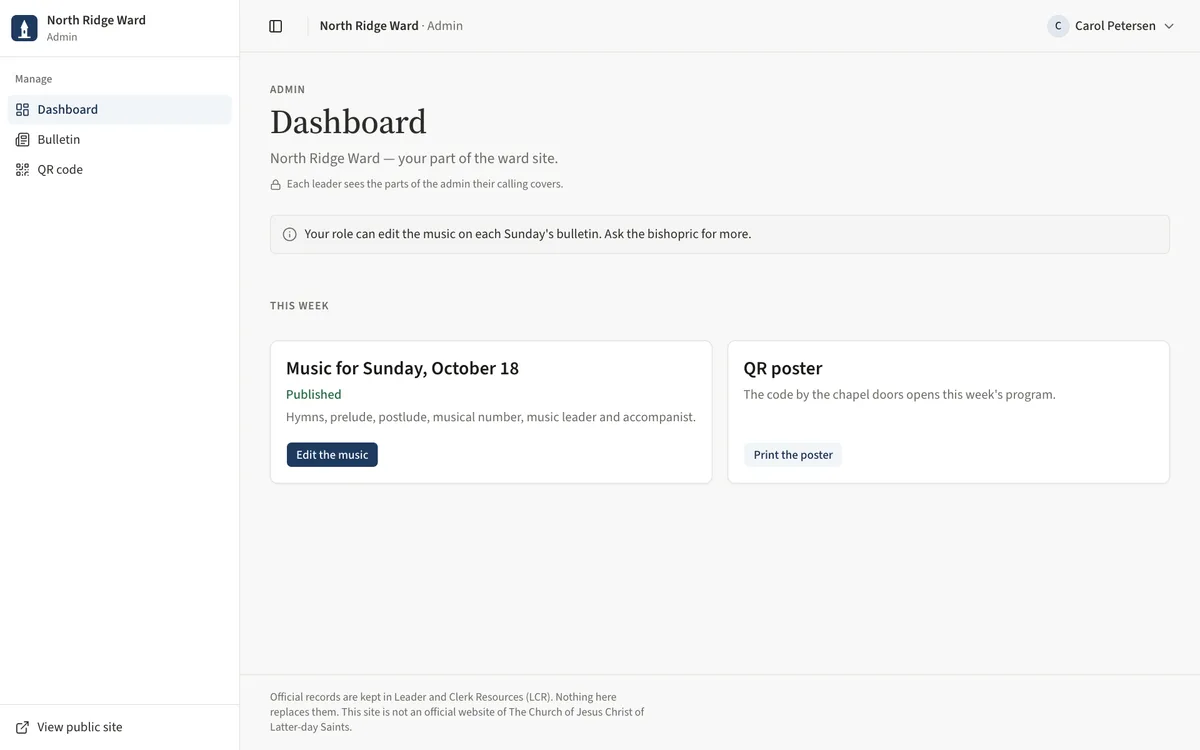
- Choose Admin in the ward menu. Your sidebar shows Dashboard, Bulletin and QR code.
- The dashboard note reads Your role can edit the music on each Sunday's bulletin. Ask the bishopric for more.
- An editor starts each Sunday's bulletin; the music fields open as soon as it exists.
- On a phone or a tablet held upright the sidebar is tucked away — open it with the menu button at the top left.
Task 1: Find this Sunday's music
- Open Dashboard. The card Music for the coming Sunday lists what you fill in.
- Choose Edit the music for that Sunday, or All Sundays to plan ahead.
- If the card says the bulletin has not been started, ask a site editor to start it.
Task 2: Fill in the music
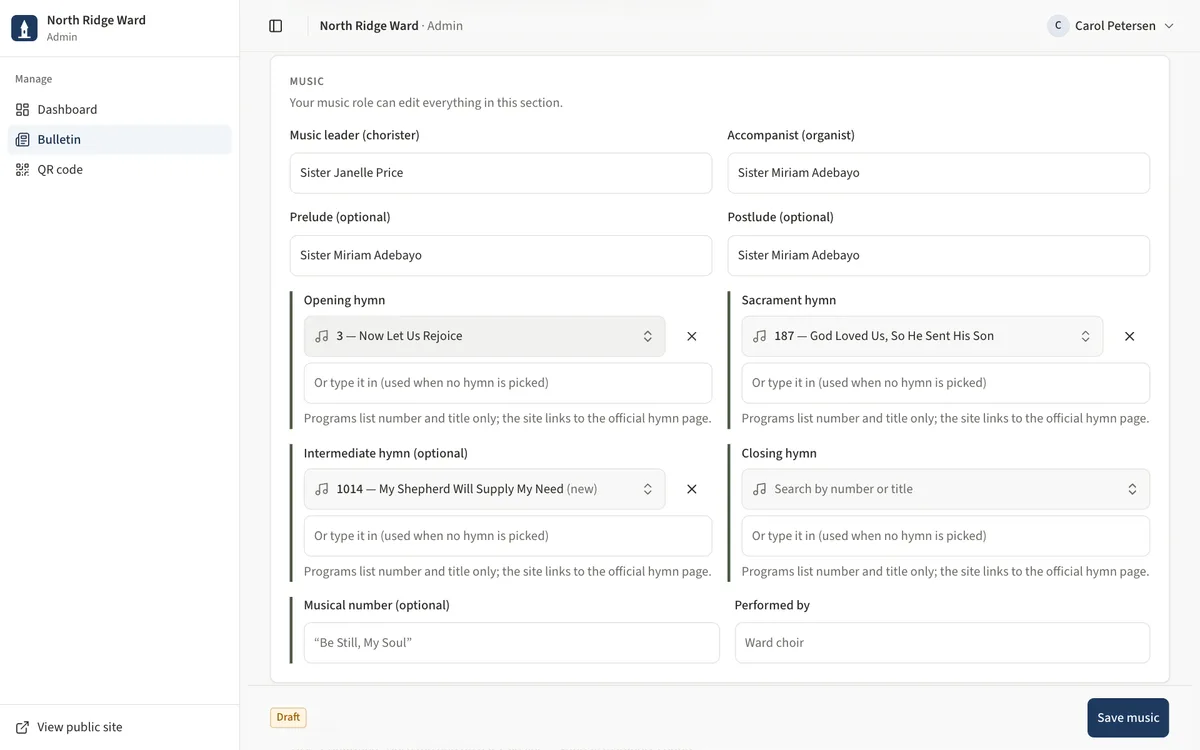
- On the bulletin page, only the Music section can be changed; the rest is shown for reference.
- Enter the Music leader (chorister) and Accompanist (organist), and Prelude (optional) / Postlude (optional). Prelude and postlude show on the conducting sheet only; the members' program lists the music leader and accompanist at the top.
- Pick the Opening hymn, Sacrament hymn, Intermediate hymn (optional) and Closing hymn.
- Add a Musical number (optional) and Performed by, then choose Save music.
Task 3: Search for a hymn
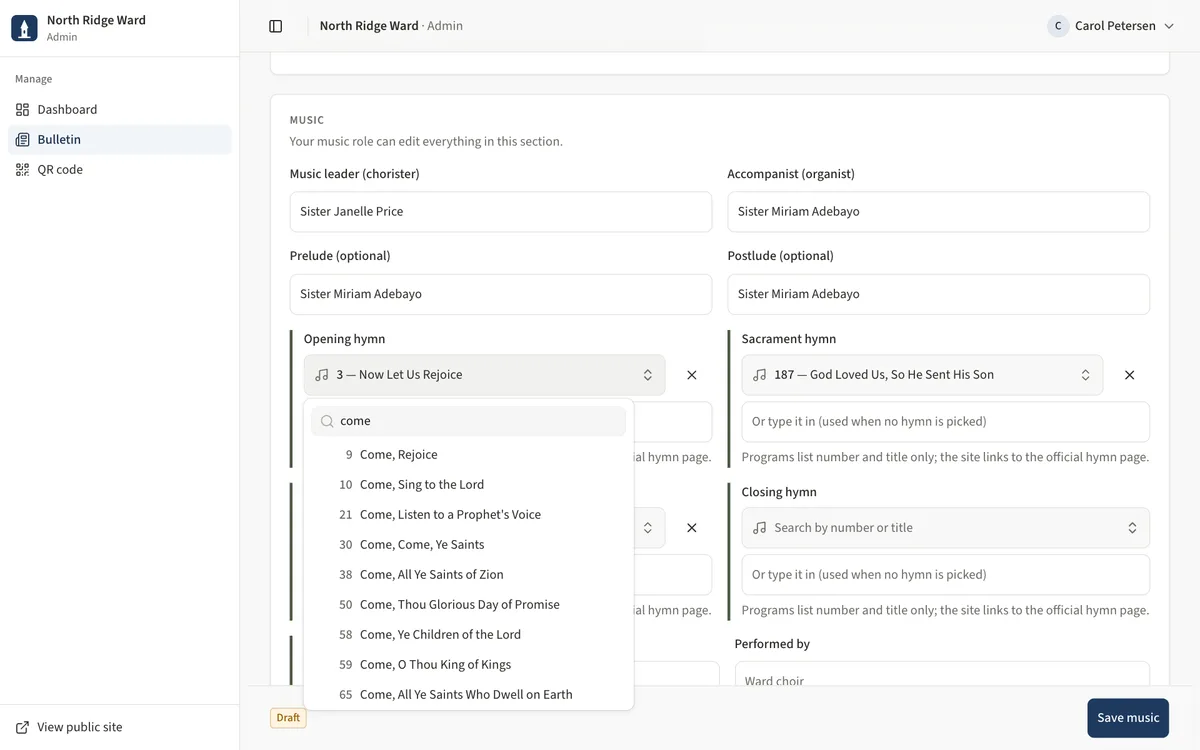
- Choose a hymn field (it reads Search by number or title).
- Type a number — “30” finds hymn 30 first, then 300–309 — or words from the title, such as “come come”.
- Pick the hymn. Hymns—For Home and Church show new.
- Not listed? Type it under Or type it in (used when no hymn is picked). Use the clear button to remove a pick.
Task 4: Check the hymn viewer
- Open the ward site's Bulletin (use View public site at the bottom of the sidebar).
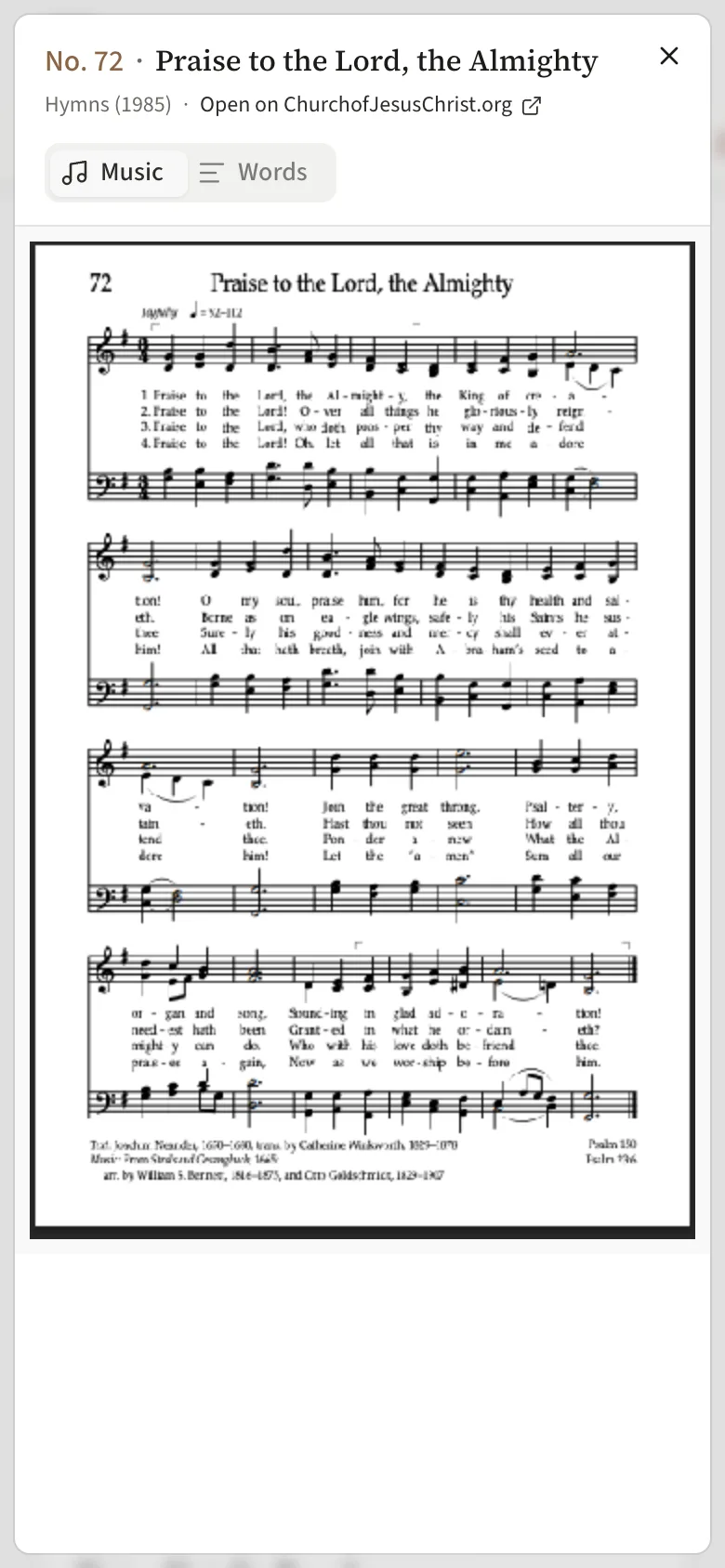
- Tap a hymn on the program — the number and title centred under its label. The viewer opens with Music and Words.
- Check the sheet music shows: it scales to fit the screen, and a longer hymn stacks its pages one under the other. Open on ChurchofJesusChrist.org opens the official page.
UAT checklist
Tick each flow once you have confirmed it works as described. Note anything unexpected — a wrong label, a missing button, an error — under “What did you see?” and send it to your UAT coordinator.
What did you see?
Account used, date, device, and anything that did not match this guide.