Training guide · Members
Ward member
Everyone in the ward. Read this Sunday's program on your phone, open the hymns, keep the ward calendar in your own calendar app, choose the reminders you want, and share what you are learning in Come, Follow Me.
UAT test account: member@steepl.test — password from your UAT coordinator.
On this page
What you can do
- Read This week and the sacrament meeting program — no sign-in needed
- Open any hymn on the program to see the music and words
- Add the ward calendar to your phone and get e-mail reminders for the events you choose
- See leaders' phone and e-mail (when they chose to share them) once you are signed in
- Share an insight or reply on the Study page
- Keep your name and phone current on My account, and join your ward with its join code
Before you start
- The bulletin, calendar and leader names are public — you do not need an account to read them.
- To see members-only events, leader contact details and the study thread, sign in. In your ward, choose Sign in with Google on the Sign in to steepl page.
- UAT testers: on Sign in to steepl choose Sign in with email, enter the test account e-mail and the password from your UAT coordinator, then Sign in.
- After signing in you land on your ward's This week page. The menu under the ward name shows This week · Bulletin · Calendar · Leaders · Study; your initial (the Account menu) is at the top right.
Task 1: Find your ward and this week
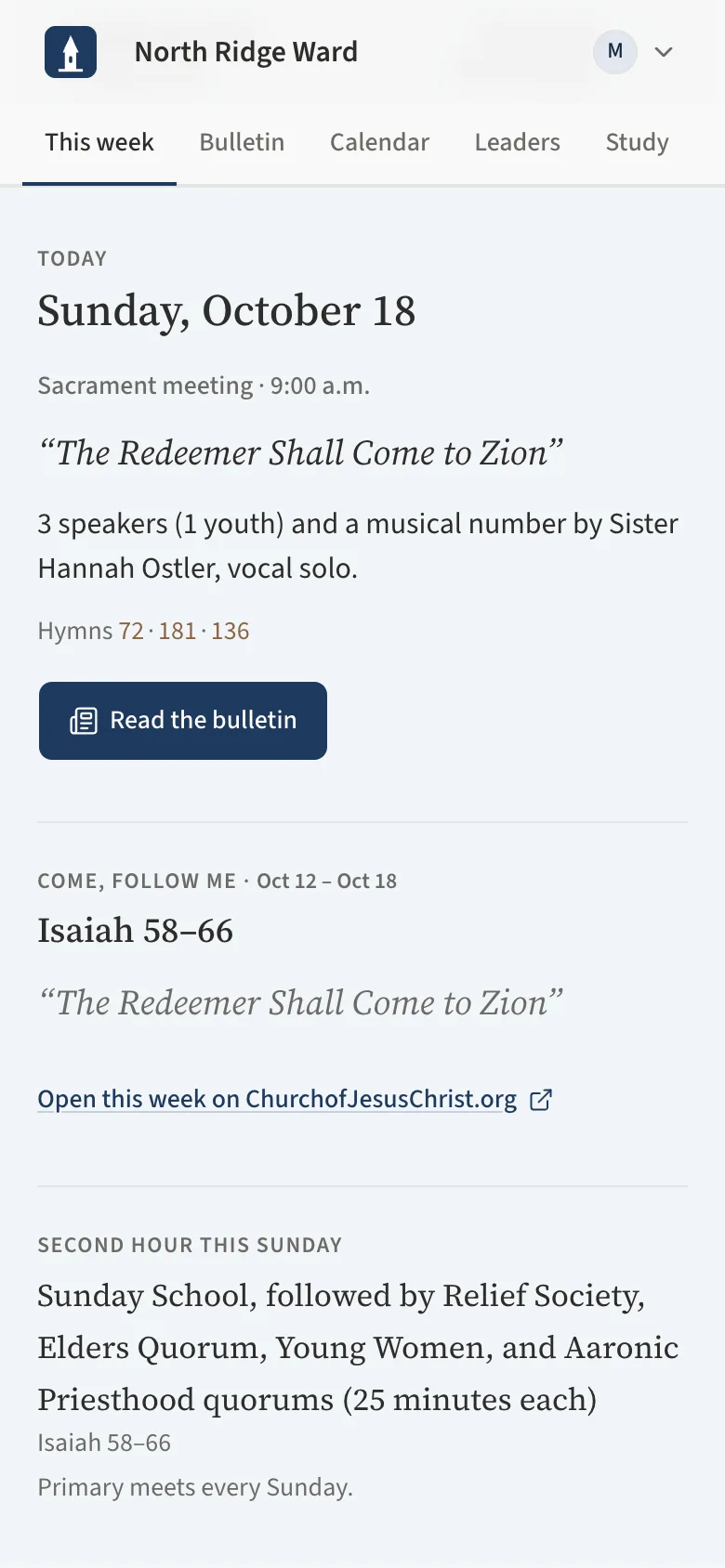
Every ward site opens on This week: the coming Sunday, announcements, what is coming up and what each class is studying.
- Scan the QR code at the meetinghouse door, or go to the steepl home page and choose Find your ward.
- Under Ward sites on steepl, find your stake and tap your ward's name.
- On This week, the navy This Sunday band (it reads Today on Sunday itself) shows the meeting, the theme, how many speakers and the hymn numbers. Tap Read the bulletin for the full program.
- Next to it (below it on a phone) are this week's Come, Follow Me reading and Second hour this Sunday.
- Scroll for Coming up (the next two weeks), Announcements (the ward's and the stake's) and, in the green band, What each group is studying.
- Bookmark the page, or add it to your phone's Home Screen, so it is one tap away next Sunday.
Task 2: Read and share the bulletin
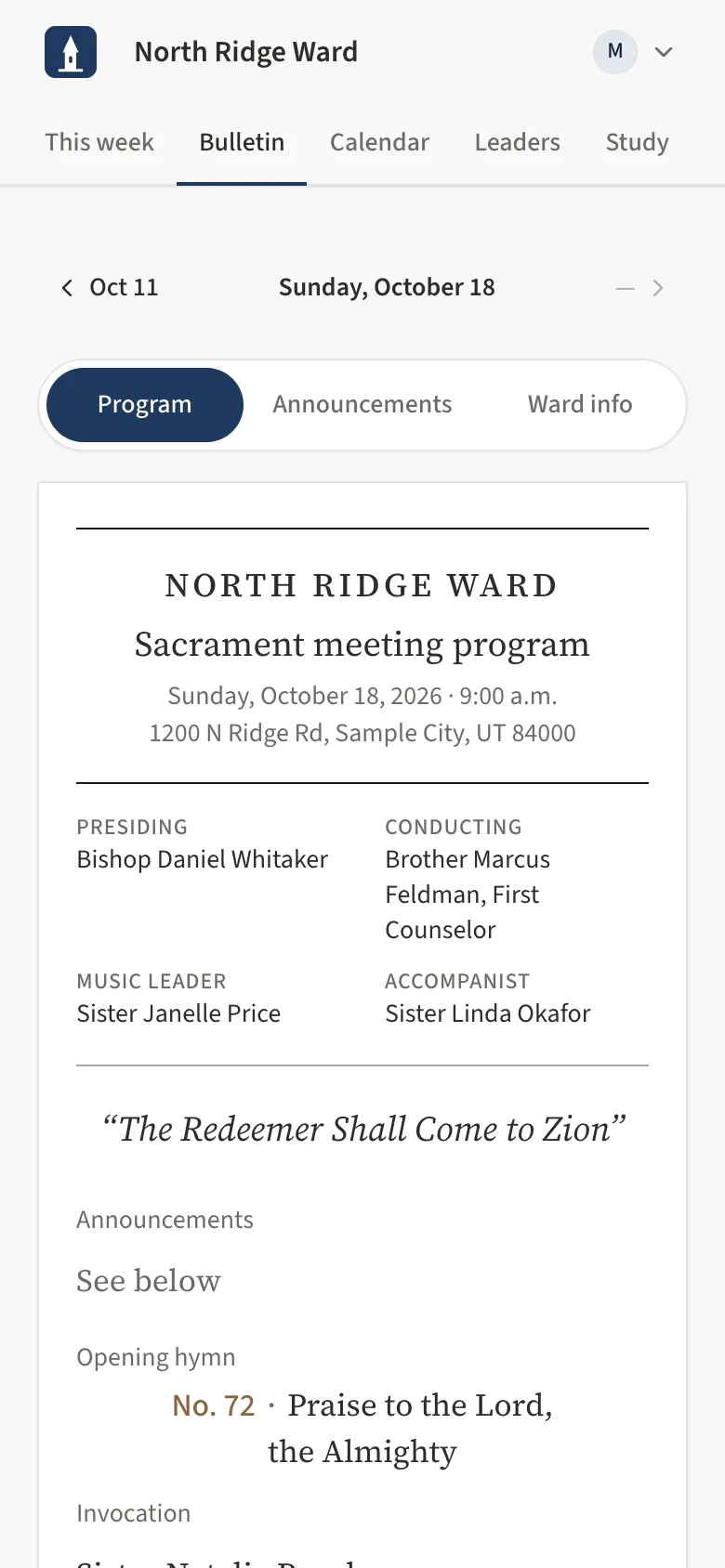
- Tap Bulletin in the ward menu. The program for the coming Sunday opens; if it is not published yet you see the most recent one, with a note saying so.
- On a phone, the tabs under the date split the page: Program (the order of service), Announcements (ward and stake news and what is coming up) and Ward info (meeting time and address, second hour and the bishopric). On a tablet or computer it is all one sheet.
- The program starts with who presides, conducts and leads the music, then the order of service: each hymn's number and title under its label, and each speaker with their topic. An announcement with a flyer shows a small picture — tap it to flip the flyer open.
- Use the arrows at the top (for example Oct 11) to move between weeks.
- Below the program, tap Share to send it, or Print. The More actions menu (…) holds Copy link, Email this (signed in: enter Send to and an optional Personal note, then Send) and Past bulletins.
- The printed program (also Print bulletin in the footer) is a half-letter sheet with a QR code back to the online bulletin.
Task 3: Open a hymn
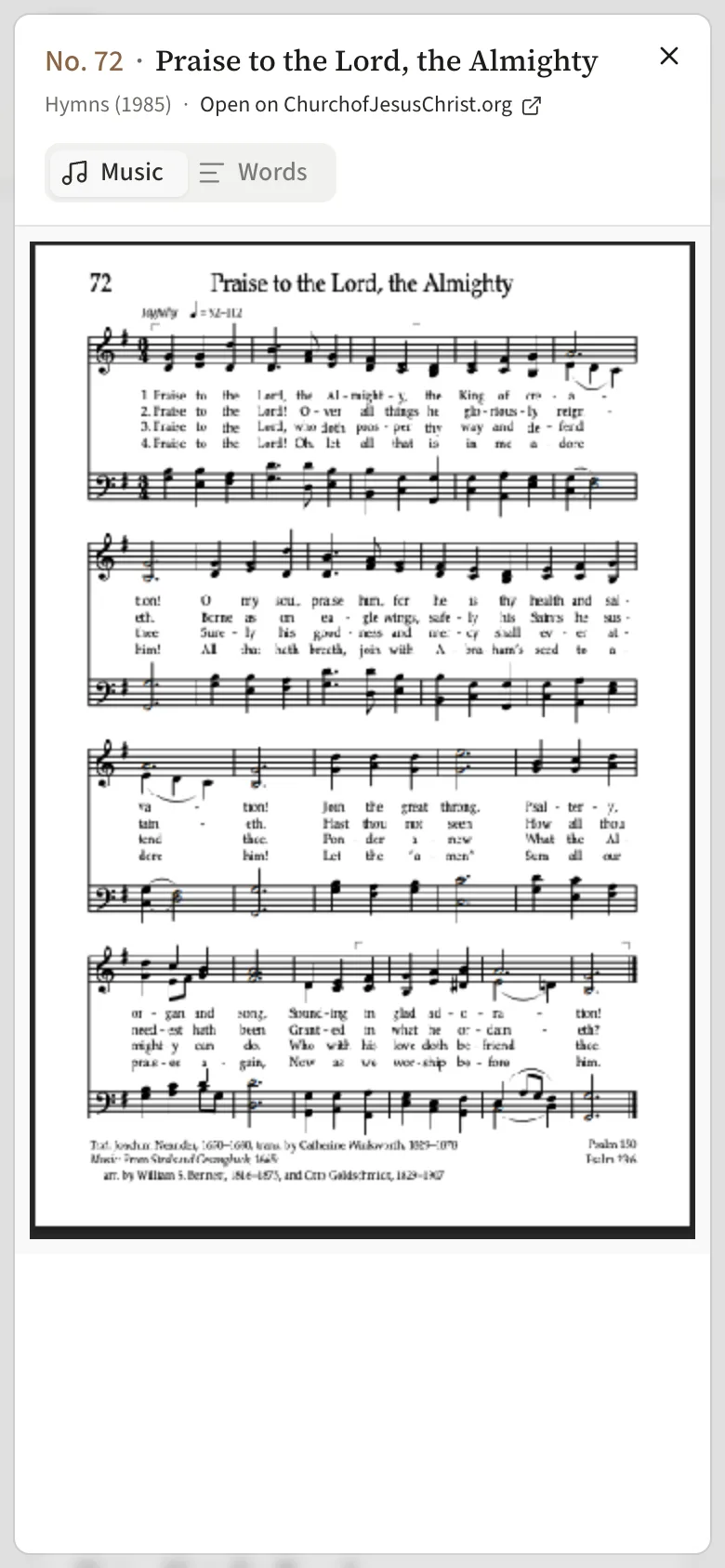
- On the bulletin, tap the hymn number and title under any hymn label — for example under Opening hymn. On This week, tap a hymn number.
- The hymn opens full screen. Music shows the sheet music, sized to fit your screen; Words shows the text when it can be reprinted.
- Longer hymns stack their pages one under the other — scroll down to read on.
- Tap Open on ChurchofJesusChrist.org for the official hymn page, or close the viewer with the X.
Task 4: Use the calendar in your own calendar app
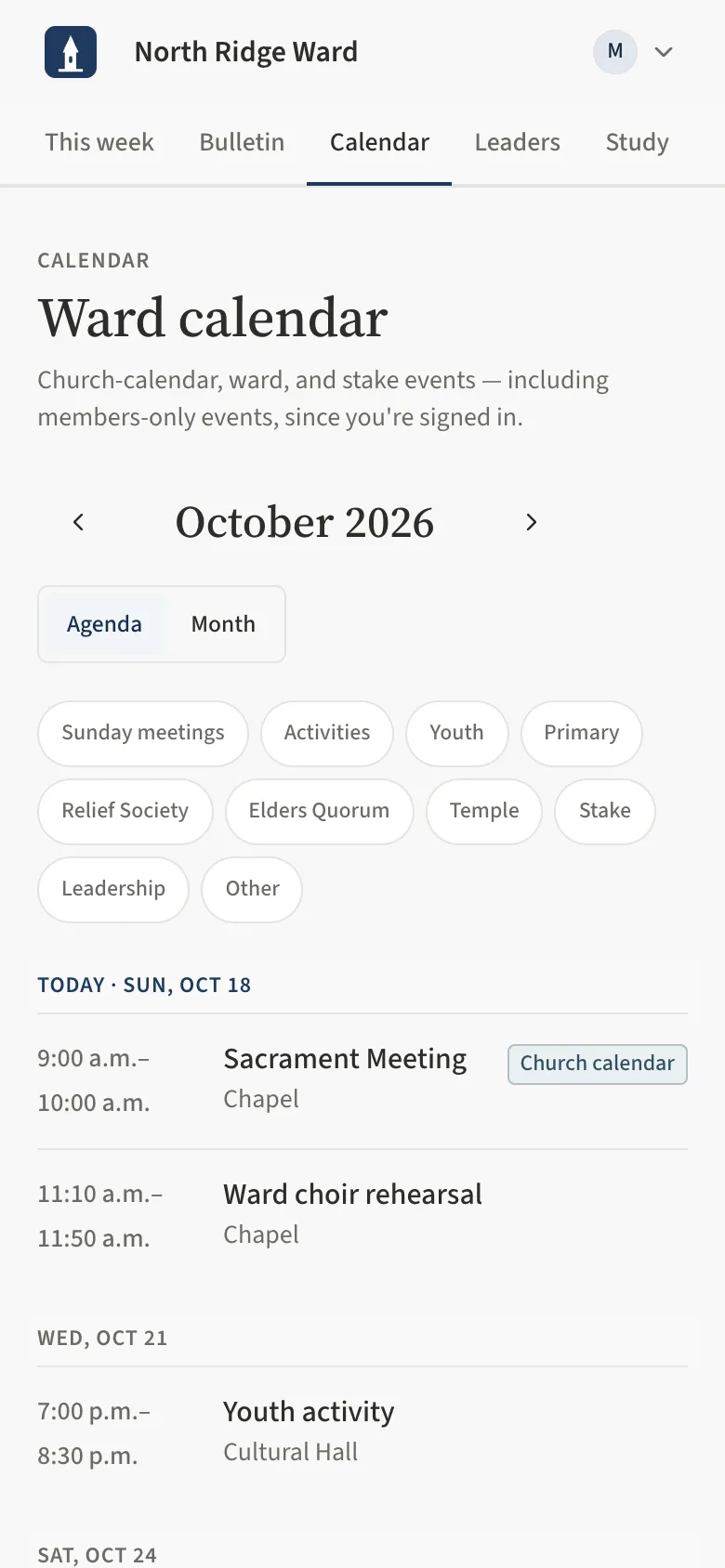
- Tap Calendar. Choose Agenda for a list of the next 60 days or Month for a grid; use the category pills (for example Youth or Relief Society) to narrow it, and Clear to reset.
- Tap an event for details. Add to my calendar saves that one event; Remind me sets up a reminder for that kind of event; Directions opens a map.
- To keep the whole ward calendar on your phone, tap Subscribe in your calendar app (Apple Calendar, Outlook) or Google Calendar. New and changed events then appear on their own.
- Signed in, members-only events (such as a break-the-fast dinner) are included.
Task 5: Choose your reminders
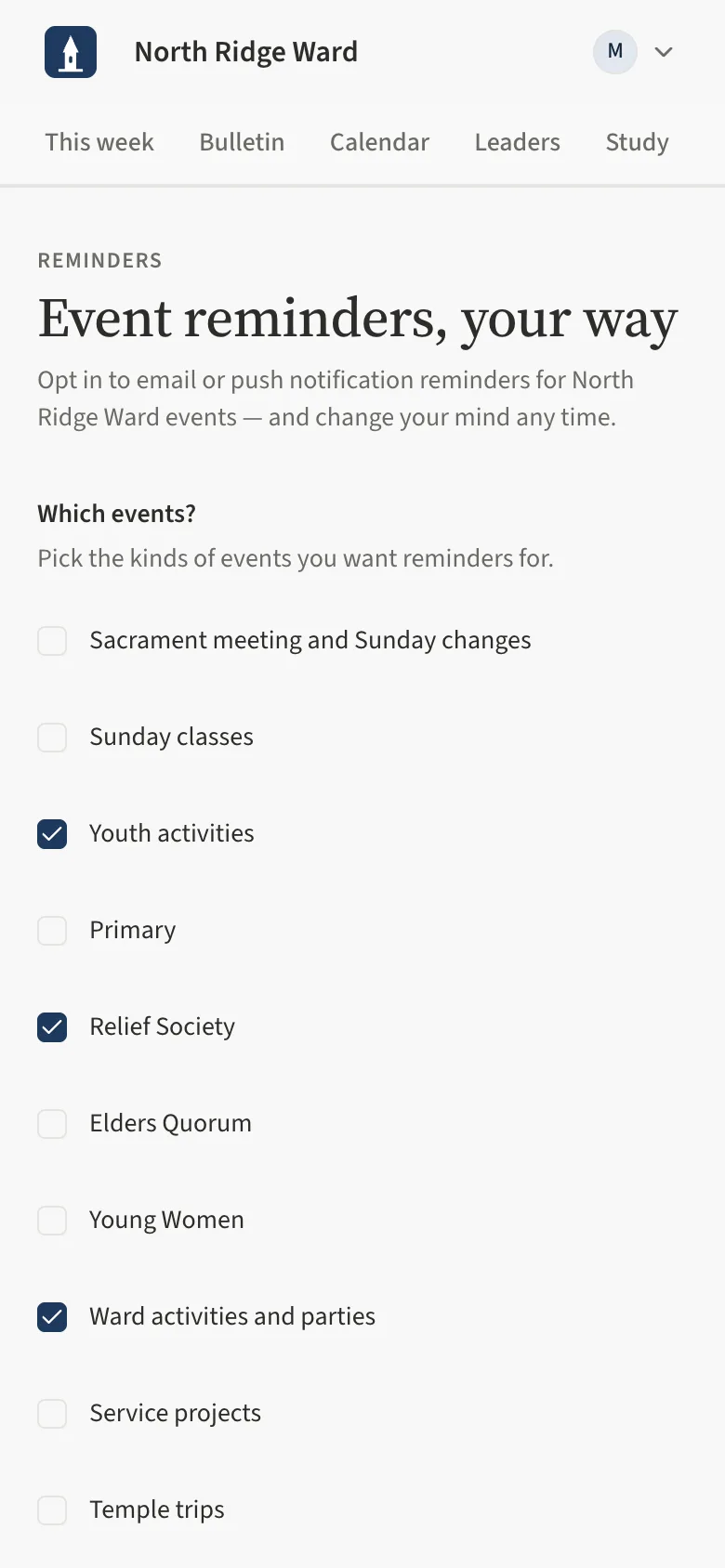
- Tap Get reminders on the calendar or This week, or Subscribe to reminders in the footer. The page is Event reminders, your way.
- Under Which events?, tick the kinds of events you want (for example Youth activities or Temple trips).
- Under How should we reach you?, keep Email reminders ticked. On a phone that supports it, you can also turn on Push notifications on this device.
- Tap Save reminder settings. (Not signed in? Enter your e-mail, tick the consent box, tap Sign me up, then enter the 6-digit code from the e-mail on Confirm your email.)
- Every reminder e-mail has an unsubscribe link; you can also change or stop reminders from My account.
Task 6: Contact a leader
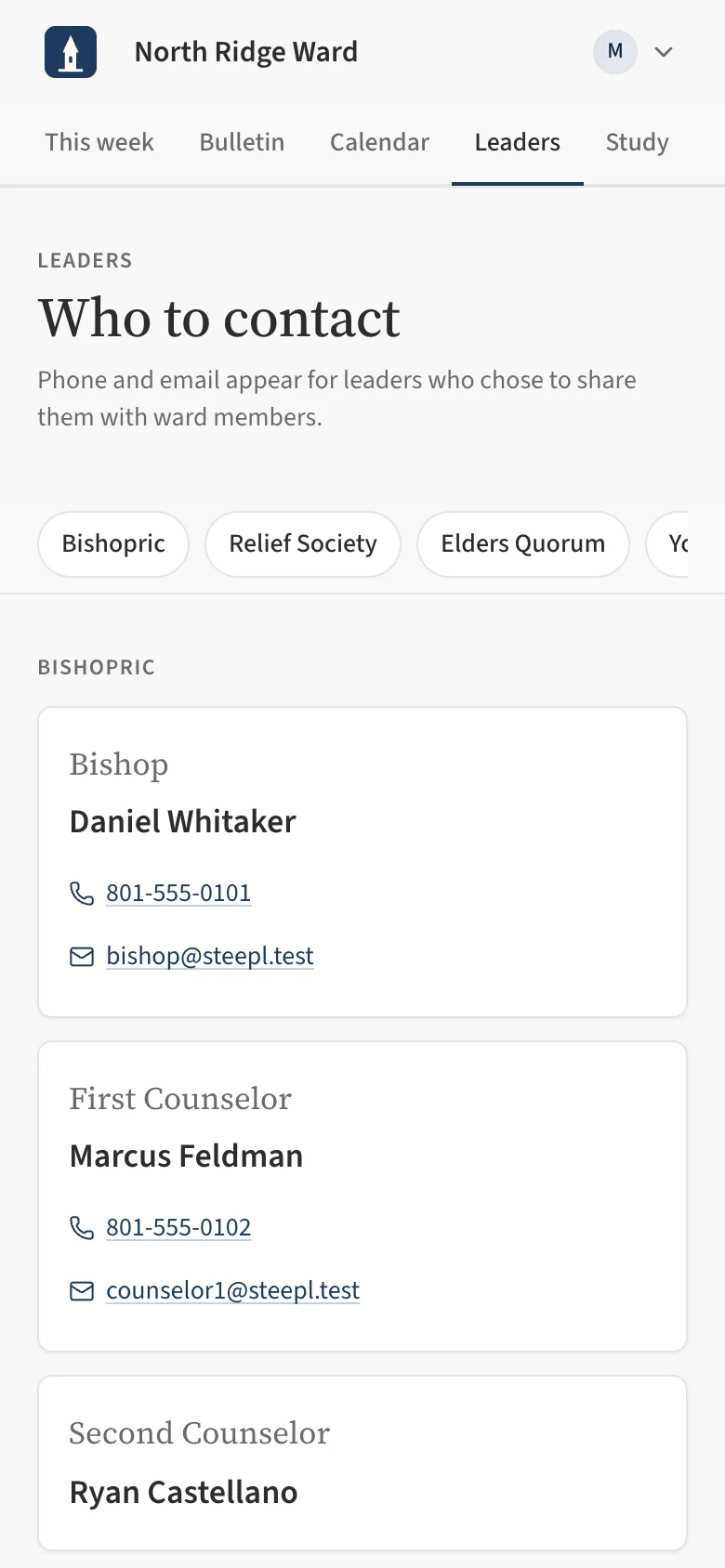
- Tap Leaders. The page is Who to contact, grouped by organization — use the chips at the top to jump to one.
- Signed in as a ward member, a leader's phone and e-mail appear when that leader chose to share them. Tap to call or write.
- To meet with the bishop, contact the executive secretary, as the page notes under Bishopric.
Task 7: Share an insight in Come, Follow Me
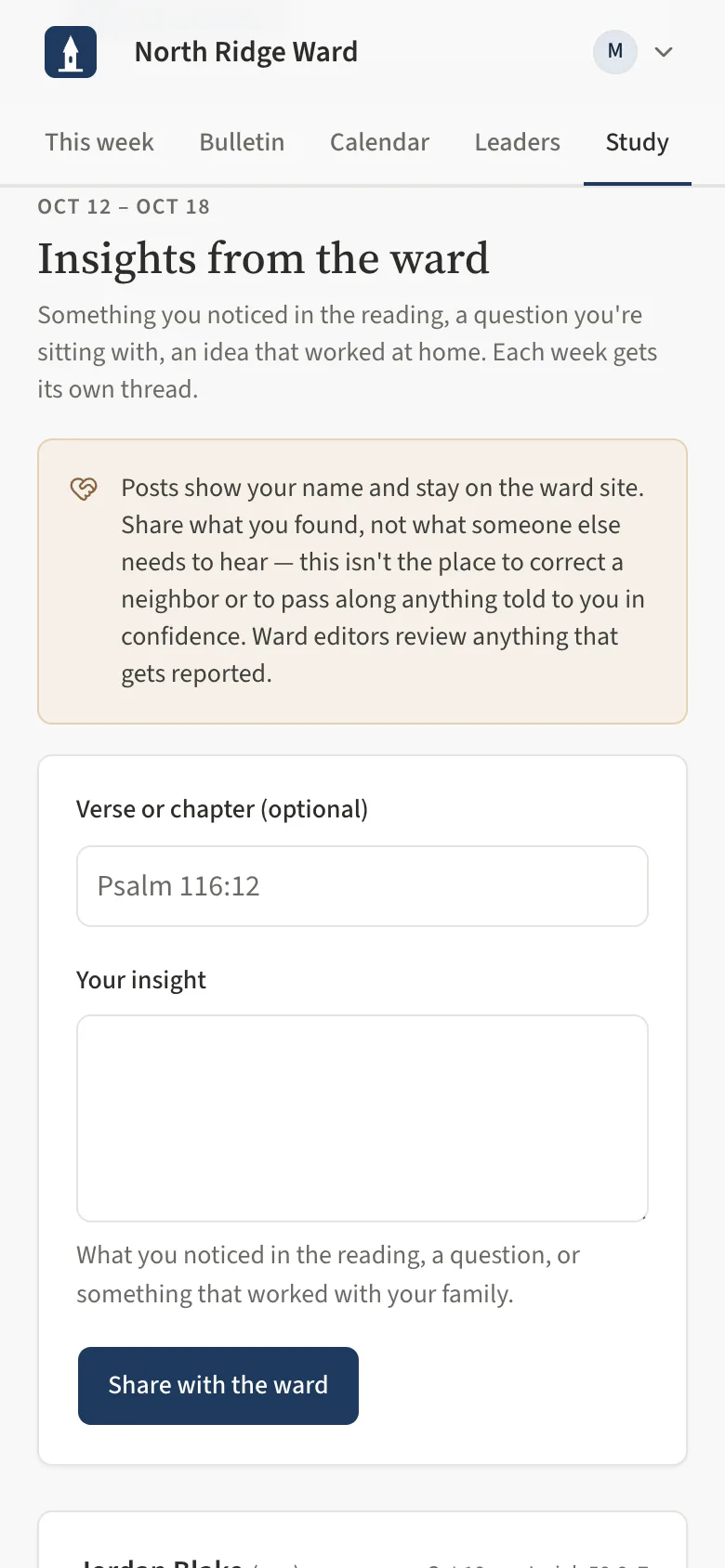
- Tap Study. The page shows this week's reading and What each group is studying (including this Sunday's talk in Elders Quorum and Relief Society).
- Use the week pills to look at another week.
- Under Insights from the ward, add an optional Verse or chapter, write Your insight, and tap Share with the ward.
- On someone else's post, tap This helped me, Reply, or Report if something is not appropriate (only the ward editors see reports).
Task 8: Your account, and joining your ward
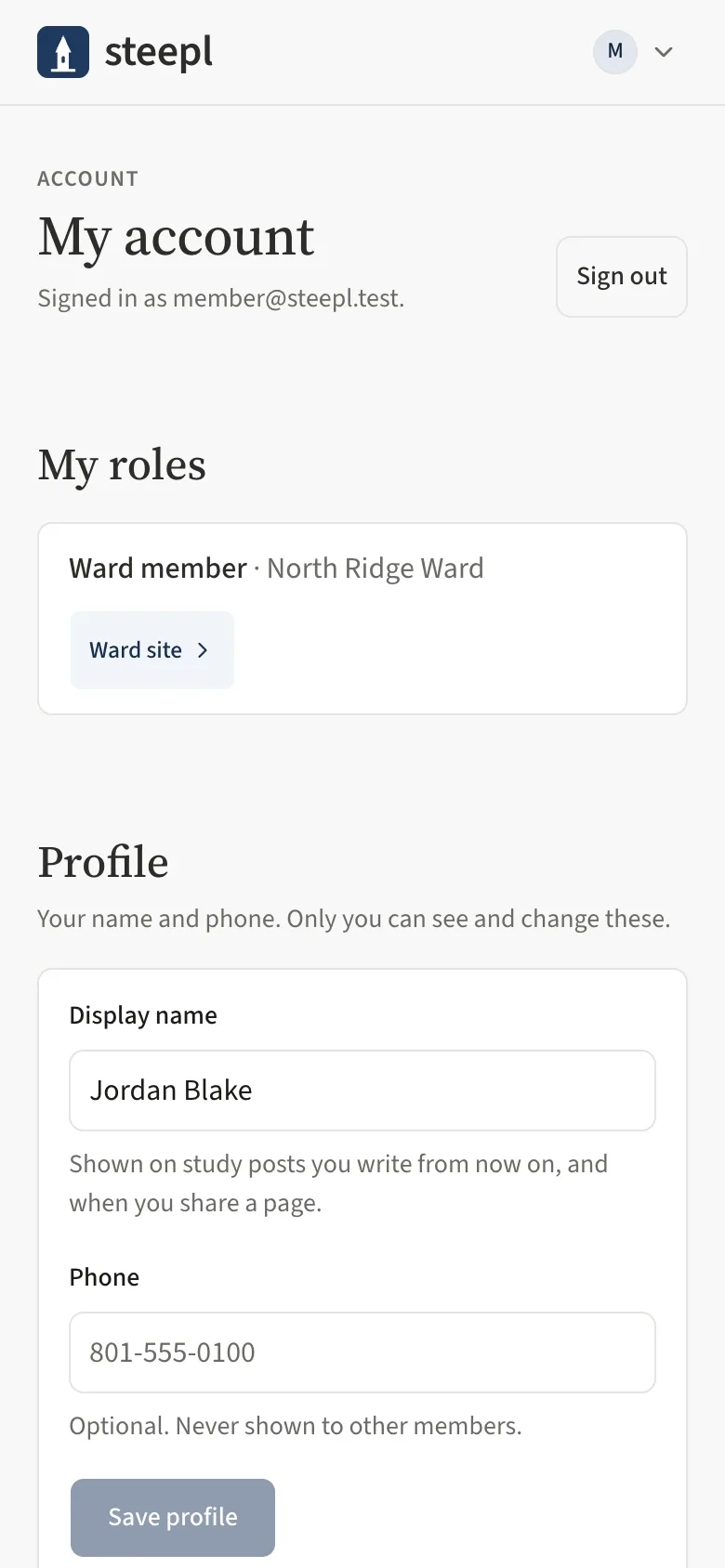
- Open the Account menu (your initial, top right) and choose My account.
- Under Profile, set your Display name and Phone (never shown to other members), then Save profile.
- Under Reminders, use Edit or Unsubscribe on any reminder.
- Not a member of a ward on steepl yet? Under Join your ward, choose your Ward, type the Join code from your ward clerk or a member of the bishopric, and tap Join. You become a member straight away and land on your ward's site.
- Delete my data removes your account and reminders (type DELETE to confirm).
UAT checklist
Tick each flow once you have confirmed it works as described. Note anything unexpected — a wrong label, a missing button, an error — under “What did you see?” and send it to your UAT coordinator.
What did you see?
Account used, date, device, and anything that did not match this guide.