Training guide · Ward leadership
Ward executive secretary
The executive secretary keeps the bishopric's calendar: interview appointments (including tithing declaration), the Sunday interview sheet, and meeting agendas with their assignments. He sees only the bishopric modules the bishop grants, and can edit the whole ward site like any site editor.
UAT test account: execsec@steepl.test — password from your UAT coordinator.
On this page
What you can do
- Schedule interviews in a week or day view and print the Sunday interview sheet
- Add a list of tithing declaration appointments at once with Add several
- Create bishopric and council meetings from Handbook templates and track assignments
- Use Visits or the Conducting sheet only when the bishop grants them
- Edit the bulletin, calendar, announcements and the rest of the ward site
Before you start
- To sign in, choose Sign in with Google. UAT testers: on Sign in to steepl choose Sign in with email, enter the test account e-mail and the password from your UAT coordinator, then Sign in.
- In the admin sidebar, the Confidential group shows Bishopric once the bishop has granted you at least one module. Inside, you see Overview plus your granted tabs (the demo account has Interviews and Meetings).
- Needs attention and Access & audit are for the bishop and his counselors only and are never granted.
- General Handbook 38.8.32: confidential Church information — membership status, temporal needs, other non-public personal information — is not stored outside Church-provided systems. Keep notes here to a few words, never record worthiness, tithing or welfare details, and record official information in LCR.
Task 1: Know what your grants show
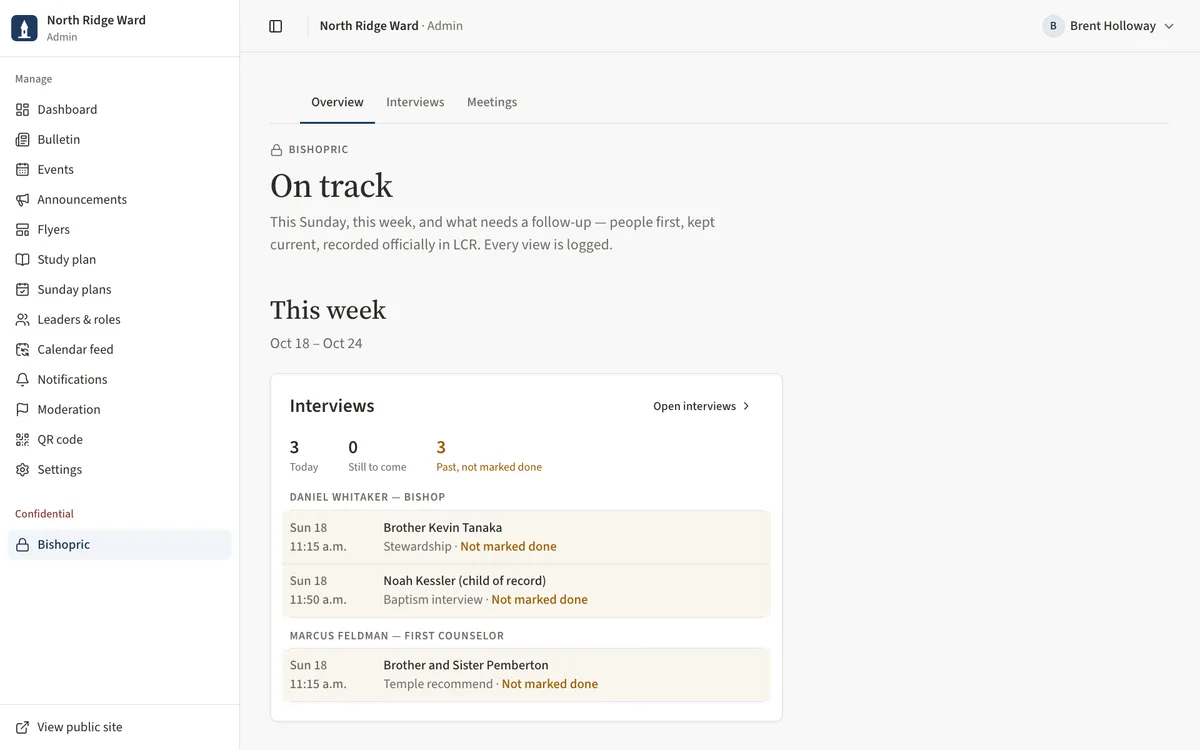
- Open Admin, then Bishopric under Confidential.
- The tabs show only the modules the bishop has granted you; the line at the bottom of each page says the area is visible to you for those modules.
- On track shows only the sections for your modules — for example This week interviews and Meetings.
Task 2: Schedule interviews
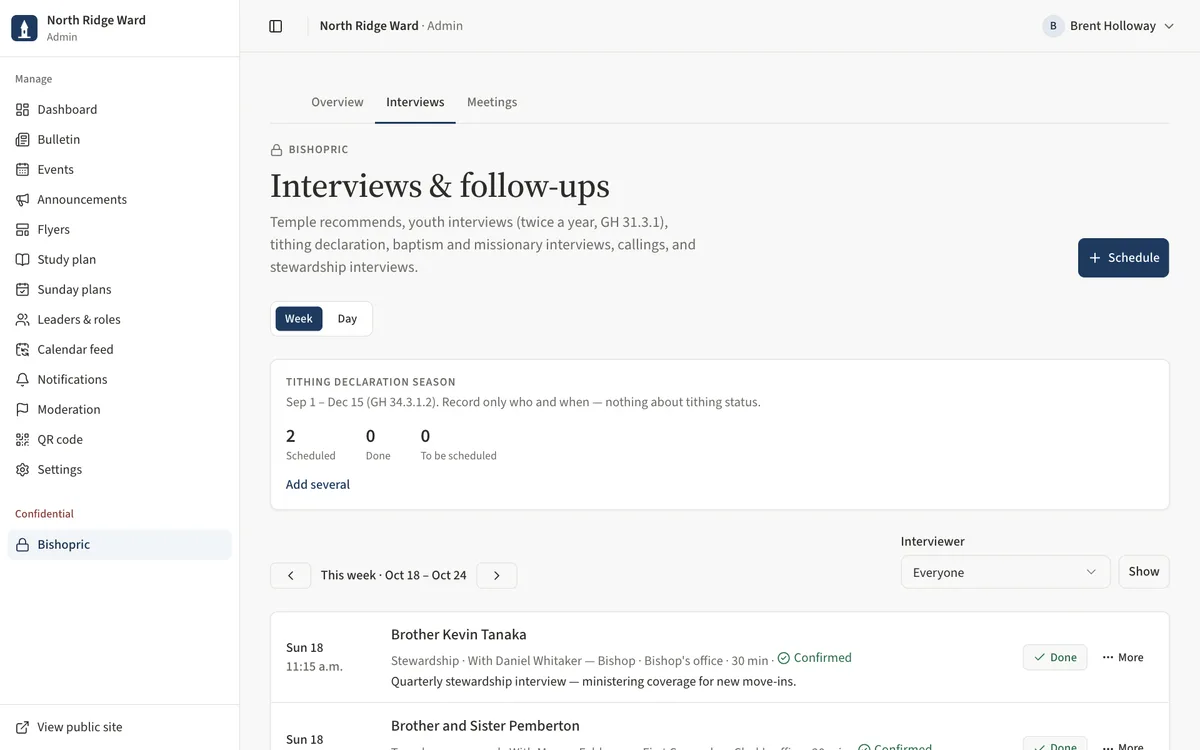
- Open Interviews and choose Schedule.
- Enter the Person (confidential), choose the Kind, When, Length (15 min by default) and With.
- Add Where (a room, not a name), tick Confirmed with the member once they agree, and choose Schedule.
- Use Week with the Previous week / Next week arrows, or Day for one Sunday with a column per interviewer.
- Requests without a time go to To be scheduled — choose Schedule on the row when you have one. To change or remove an appointment, open the row's More menu and choose Edit or Remove.
Task 3: Add tithing declaration appointments in bulk
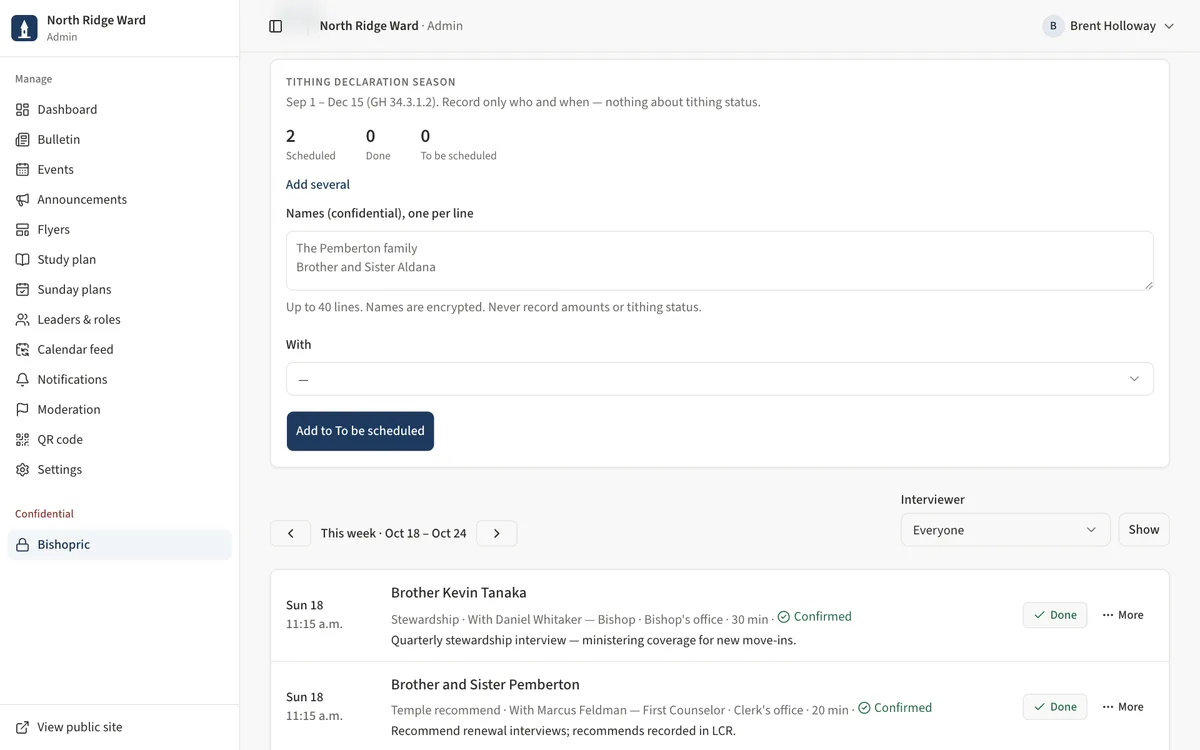
- On Interviews, find Tithing declaration season and open Add several.
- Type one family or person per line under Names (confidential), one per line (up to 40).
- Pick With and choose Add to To be scheduled.
- Give each one a time from To be scheduled with Schedule.
Task 4: Print the Sunday interview sheet
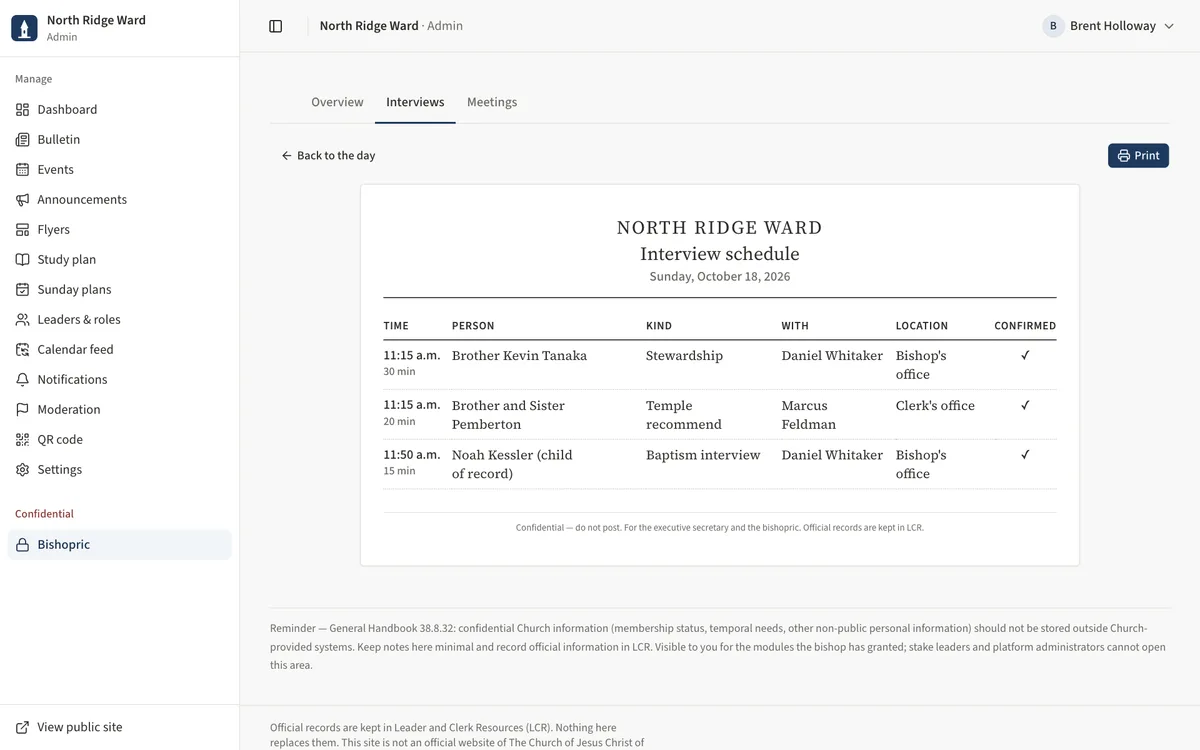
- On Interviews, choose Day. It opens on next Sunday; Next Sunday jumps back to it.
- Choose Print sheet.
- Check the sheet — time, person, kind, with, location and confirmed — and choose Print.
Task 5: Prepare agendas and track assignments
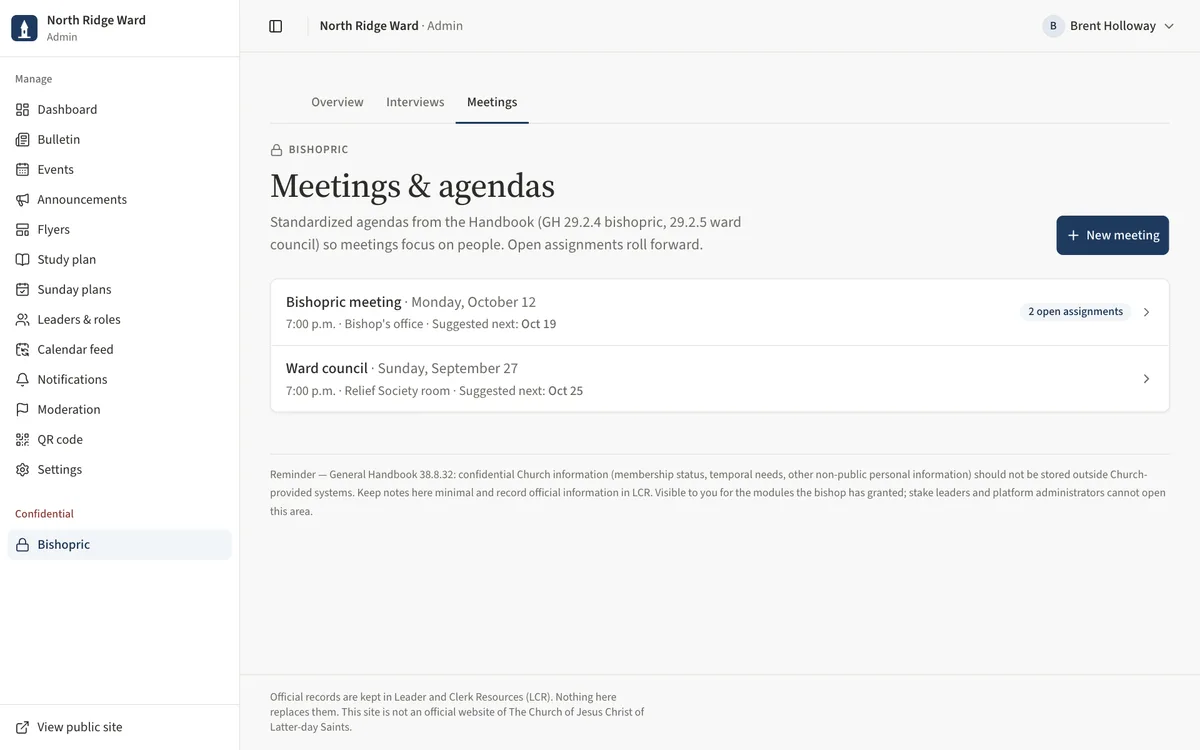
- Open Meetings and choose New meeting. Pick Bishopric meeting, Ward council or Ward youth council, the Date, and the Handbook Agenda template, then Create meeting.
- Open assignments from the last meeting of that kind are carried forward automatically.
- During the meeting, choose Add assignment, enter the assignment, owner and due date, and Add. Tick it when done.
- Choose Print agenda for paper copies. Back on Meetings, the latest meeting of each kind shows Suggested next: with a date — use New meeting to set it up.
Task 6: When a page needs a grant
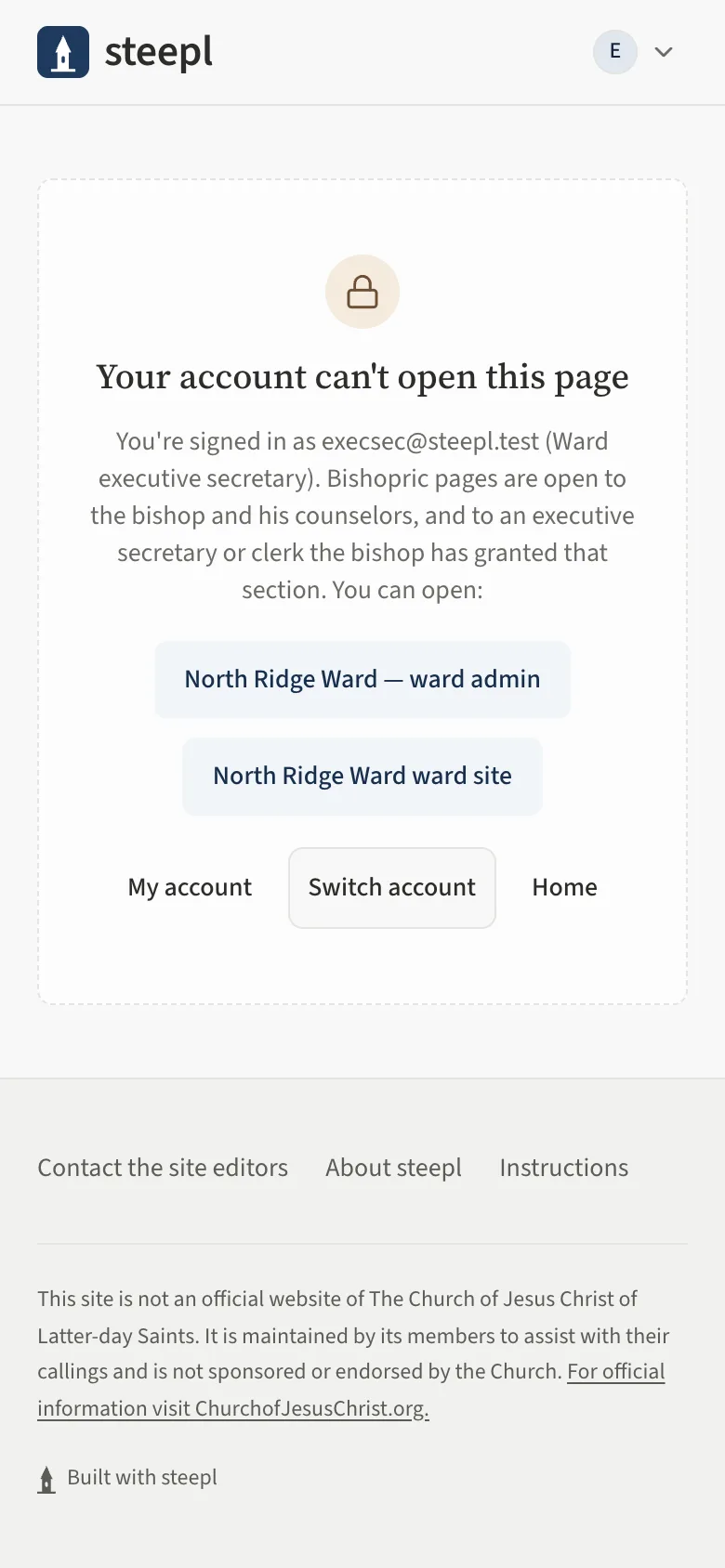
- Visits and the Conducting sheet open only if the bishop grants them on Access & audit.
- Without the grant, the page says Your account can't open this page and explains who can.
- Ask the bishop; a grant takes effect immediately.
Task 7: Edit the ward site
As executive secretary you are a full ward editor. The site editor guide covers each page in detail.
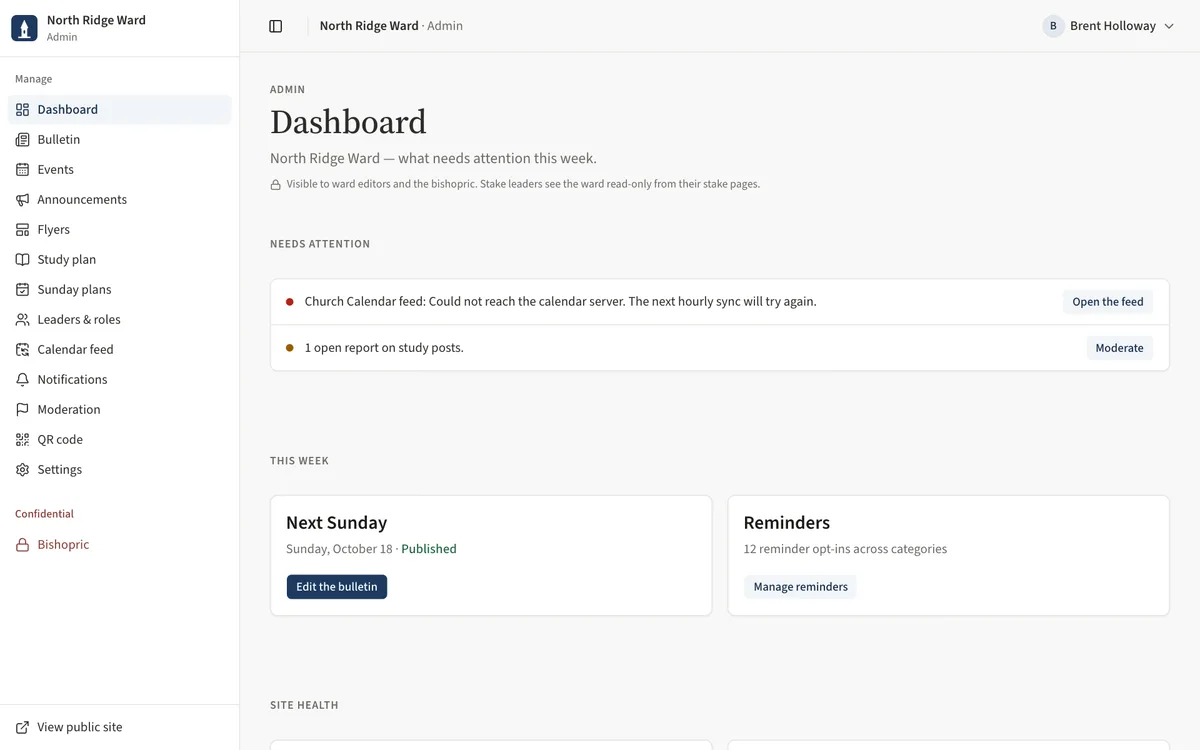
- Open Admin. The sidebar lists Dashboard, Bulletin, Events, Announcements and the other ward pages. On a phone or a tablet held upright, open it with the menu button at the top left.
- The Dashboard lists what needs attention this week — a missing program, announcements waiting for approval.
- Open Bulletin and choose a Sunday's date to fill in or publish its program.
UAT checklist
Tick each flow once you have confirmed it works as described. Note anything unexpected — a wrong label, a missing button, an error — under “What did you see?” and send it to your UAT coordinator.
What did you see?
Account used, date, device, and anything that did not match this guide.