Training guide · Ward leadership
Counselor in the bishopric
Counselors work in the same confidential bishopric workspace as the bishop: the attention list, callings, interviews, visits and agendas. On the Sundays you conduct, the conducting sheet walks you through the meeting, and the Visits page shows the visits assigned to you.
UAT test account: counselor1@steepl.test · counselor2@steepl.test — password from your UAT coordinator.
On this page
What you can do
- See On track and every bishopric module, the same as the bishop (Access & audit is read-only for you)
- Conduct sacrament meeting from the Conducting sheet on the Sundays you are assigned
- See the visits assigned to you with Mine and mark them done
- Schedule the interviews you hold and keep callings moving through their stages
- Edit everything on the ward site (bulletin, calendar, announcements), as all bishopric members can
Before you start
- To sign in, choose Sign in with Google. UAT testers: on Sign in to steepl choose Sign in with email, enter the test account e-mail and the password from your UAT coordinator, then Sign in.
- After sign-in you land on the ward's This week, with Admin and Bishopric in the ward menu.
- Open the confidential workspace from Bishopric in the ward menu (or the Confidential group in the admin sidebar). The tabs are Overview · Needs attention · Callings · Interviews · Visits · Meetings · Conducting sheet · Access & audit — you see only the ones your calling or grant covers. The tabs carry no lock icons; one lock sits in the Bishopric kicker above each page title.
- General Handbook 38.8.32: confidential Church information — membership status, temporal needs, other non-public personal information — is not stored outside Church-provided systems. Keep notes here to a few words, never record worthiness, tithing or welfare details, and record official information in LCR.
- Only the bishop's account can record the site approval in Settings. Access & audit is read-only for counselors: you can see which modules the executive secretary and clerk have and read the Audit log, and the page notes The bishop manages module access. The module switches under Leaders & roles are turned off for you as well.
Task 1: Check “On track” before bishopric meeting
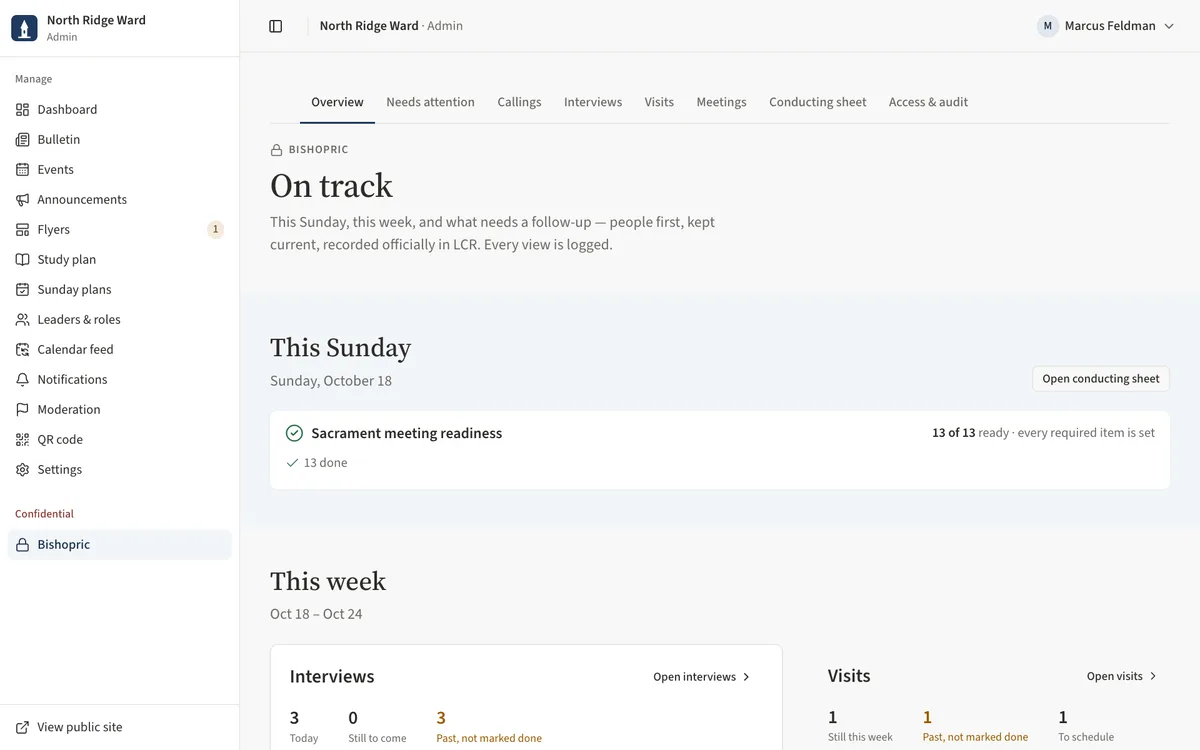
- Open Bishopric; the overview is On track.
- Under This week, find your name as interviewer in Interviews and the visits assigned to you in Visits.
- Look at Needs attention for stale entries you own and Meetings for assignments past due.
Task 2: Conduct on your Sunday
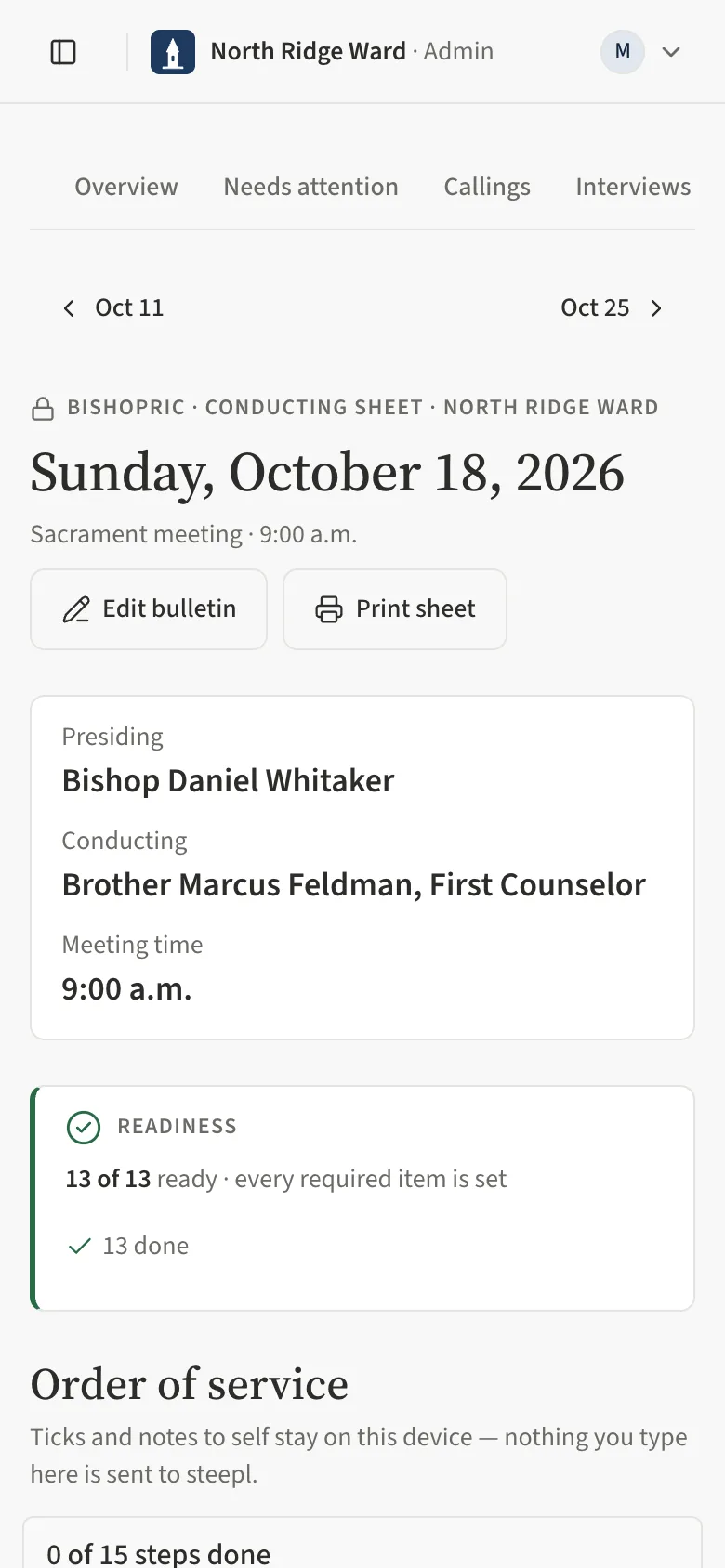
- Open Conducting sheet on your phone before the meeting. It opens on this Sunday.
- Read Readiness. Anything missing links to the bulletin field — fix it there or tell the editor.
- Follow the Order of service — one list, each step marked with a coloured edge. Suggested wording gives a script for the welcome and business. Tick each step as you go; it collapses — choose Show to look again.
- Ward business lists the names to read; members' programs show only a bare Ward business line.
- At the sacrament, use the Bread and Water tiles (see the next task).
- Prefer paper? Choose Print sheet — your notes to self stay on your phone and are not printed.
Task 3: Follow the sacrament prayers
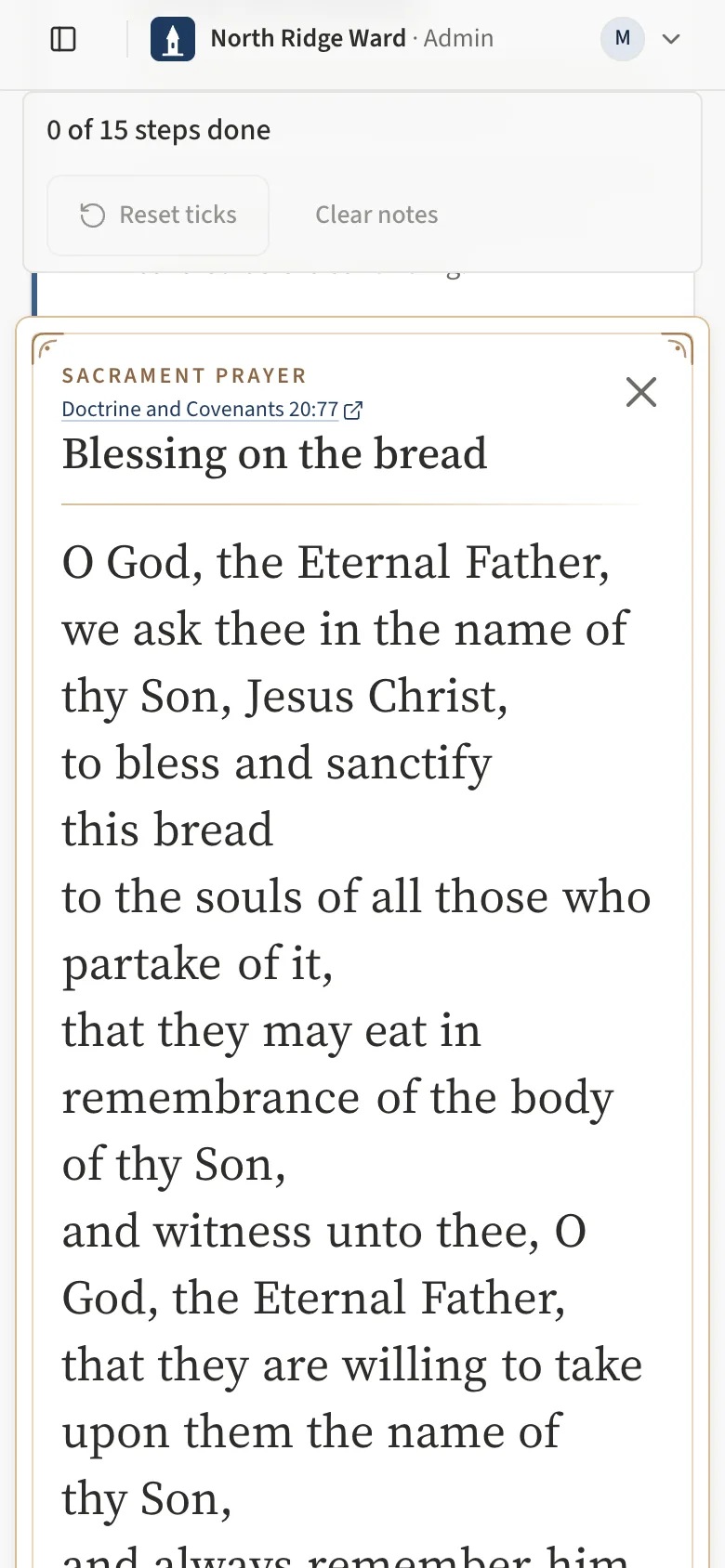
The sacrament step on the conducting sheet carries the two prayers, so you can follow the words as they are read.
- On the conducting sheet, find Administration of the sacrament. It shows two square tiles, Bread and Water.
- Tap Bread or Water. The box flips over into a prayer card with the prayer in large type, one phrase per line.
- If the browser asks to use the microphone, allow it. The chip reads Listening… and each word lights up as the priest reads it.
- Tap the card or the X to flip back to the sheet. The microphone stops.
Task 4: See and record the visits assigned to you
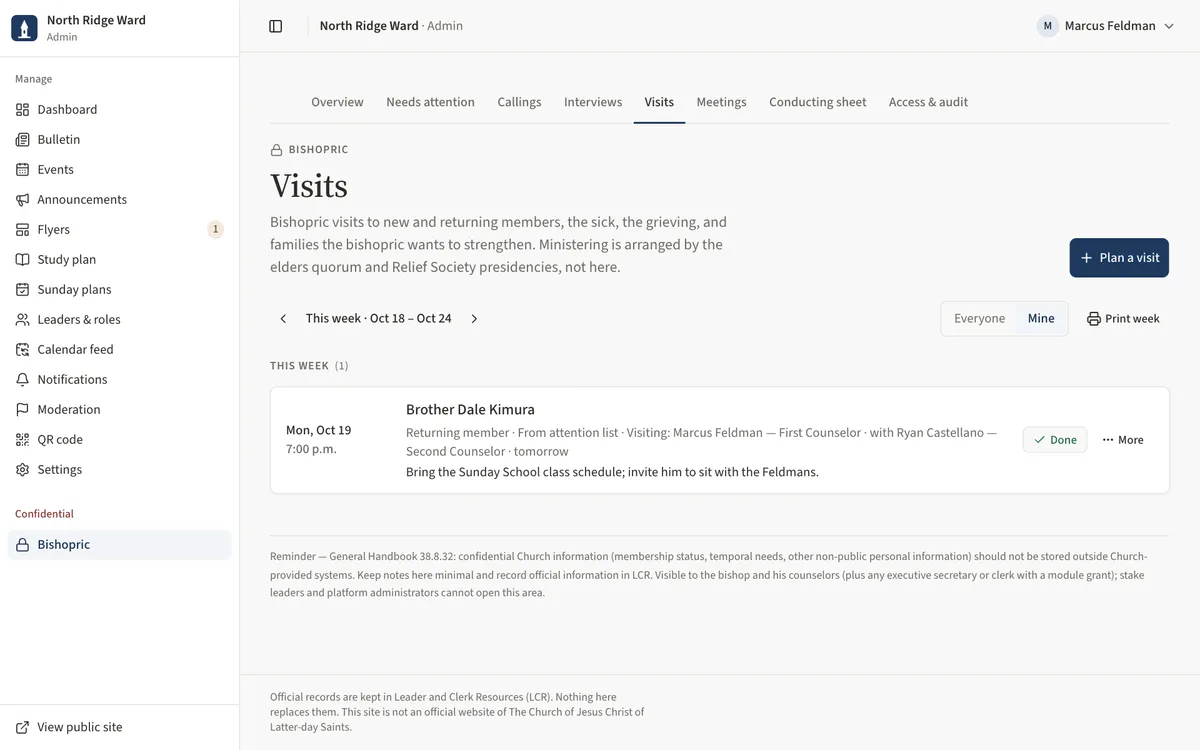
- Open Visits and choose Mine under Whose visits.
- Visits for this week are under This week; missed ones show Overdue.
- After a visit, choose Done, add a short Outcome (confidential) if needed, and Mark done.
- Choose Print week with Only mine for a list to take with you.
Task 5: Schedule the interviews you hold
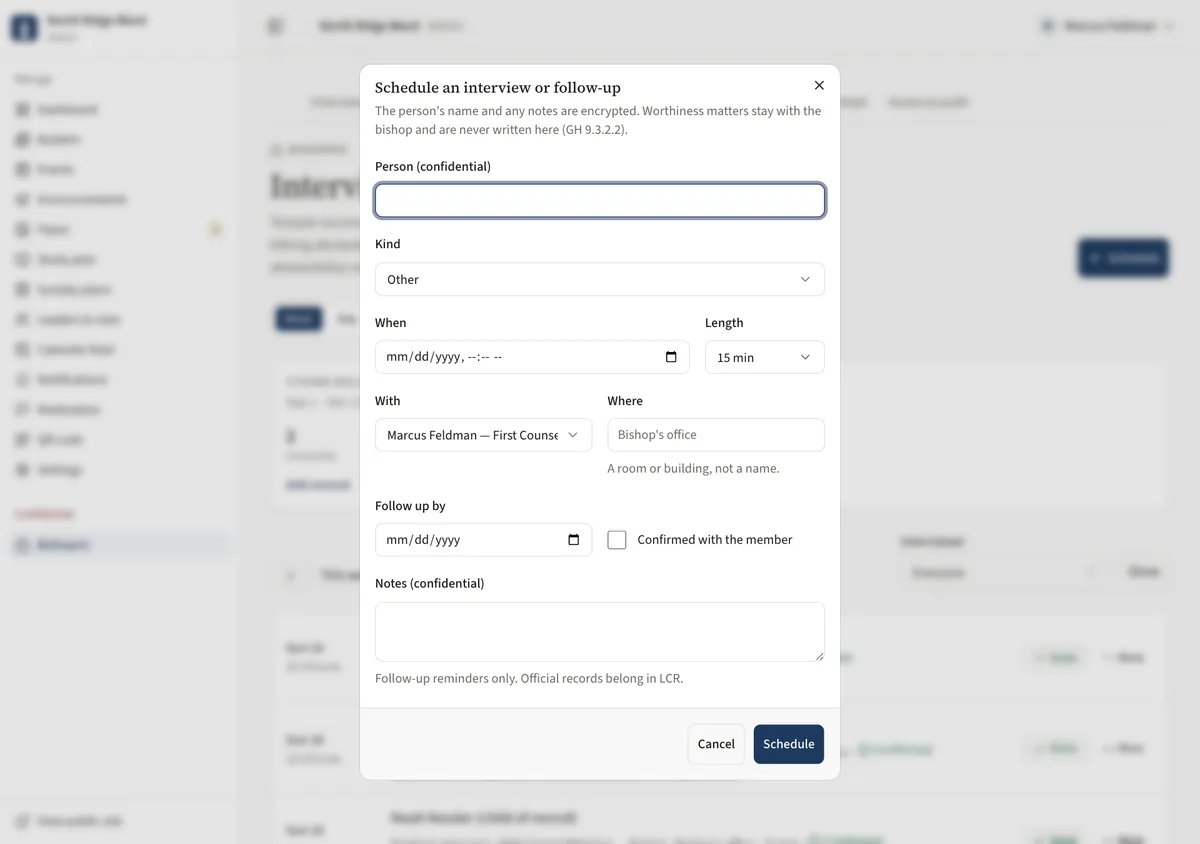
- Open Interviews and choose Schedule.
- Enter the Person (confidential) and Kind, choose When, and pick yourself under With, then Schedule.
- Use Day to see your column for a Sunday; the Interviewer filter on Week shows only yours.
- After the interview, choose Done and Mark done; add a follow-up date if one is needed.
Task 6: Move the callings you own
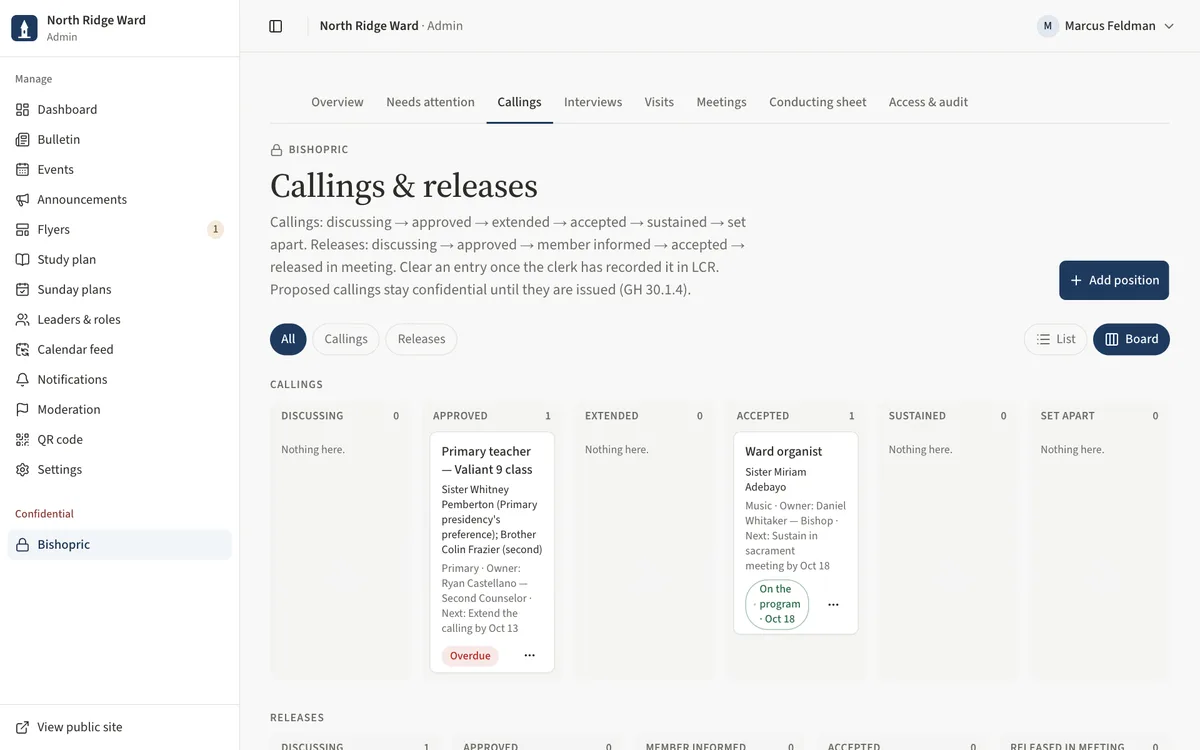
- Open Callings. Your entries show Owner: with your name and the next step.
- Change the stage with the status list on the row, or open the card and update the next step and its By date (in list view, Edit is in the row's More menu).
- An overdue next step shows Overdue. Update it after you extend a calling.
UAT checklist
Tick each flow once you have confirmed it works as described. Note anything unexpected — a wrong label, a missing button, an error — under “What did you see?” and send it to your UAT coordinator.
What did you see?
Account used, date, device, and anything that did not match this guide.